




Wi-Fi has become a near-necessity in modern life. Even though data plans have generally become a bit more generous over the years, you still don’t want to burn through your allocation, either at home or when out and about. That’s why a Wi-Fi network is such a plus. But what if your phone simply refuses to log on? What’s going wrong? Here are a few things to try when your phone won’t connect to Wi-Fi.
Why does my phone keep disconnecting from Wi-Fi?
There could be a number of reasons why your device refuses to join a Wi-Fi network. It could be that the network itself is experiencing problems, maybe a setting on your phone is getting in the way, or there could be a hardware problem that’s a bit more serious. We’ve gathered together some of the most common reasons for Wi-Fi issues below, so you can quickly check if the problem is one that you can solve.
Is the Wi-Fi signal too weak?
A weak signal from a router can make it difficult for a phone to hold a Wi-Fi connection. Take a look at the Wi-Fi icon at the top right of your device (Android or iPhone) and it should show you the strength of the current signal. If the upside-down triangular icon has all of its bars filled, then the signal is strong and probably isn’t the issue. If not, you could try moving closer to the router.
Walls weaken signals, so try repositioning yourself with a line-of-sight to the router and hopefully this will improve the signal strength. It’s also worth remembering that things placed in front of a router can interfere with the signal, so check that no-one has put anything large next to it that could be causing a problem.

Do you need to log in to the network?
You might think you only need to tap on the name to access a public Wi-Fi service, but it might be that you have to log into an account to actually access the internet itself. This is quite common in coffee shops and bars.
To check this, go to the Wi-Fi setting on your device and see if it has a warning indicator that says there’s a problem. This usually has some kind of accompanying message such as ‘No Internet. Login required’. If that’s the case, tap the message and log into the account you use at that location. If you don’t have one, open your browser and try searching for a new site. This should prompt the login message from the network, with a page where you can create a free account to use on the service.
Is the network down?
One simple reason for problems connecting to a Wi-Fi service is that the network itself is down. Try checking on a friend’s phone to see if they can use the service, or look around to see if anyone else is able to connect. If you’re in a coffee shop or similar location, you can always ask the staff if there’s a problem. They may be able to reboot the router and get things working once more. If you’re at home, try doing the same to see if it clears your connection issues.

Shutterstock
Shutterstock
Shutterstock
Is the network too busy?
It might be the case that there are simply too many people on the network or that some are doing activities (video calls, streaming 4K content, etc) that are using all the bandwidth. If you’re at home, then it’s worth checking if this is the case and maybe asking your family or housemates if they can cut back on their use of the network. If you’re on a public Wi-Fi connection, you might need to relocate instead.
Is Wi-Fi turned off on your phone?
Another common issue is forgetting that the Wi-Fi capabilities on your phone are switched off. To check if this has happened, follow these steps:
iPhone: Swipe down from the top right of the display and ensure that the Wi-Fi icon is blue. If it’s white, that means it’s turned off. Just tap it to fix the problem.
Another thing to check is that you’re not in Flight Mode. You’ll see this if the little aeroplane icon has an orange background. If it does, tap it to disable Flight Mode.
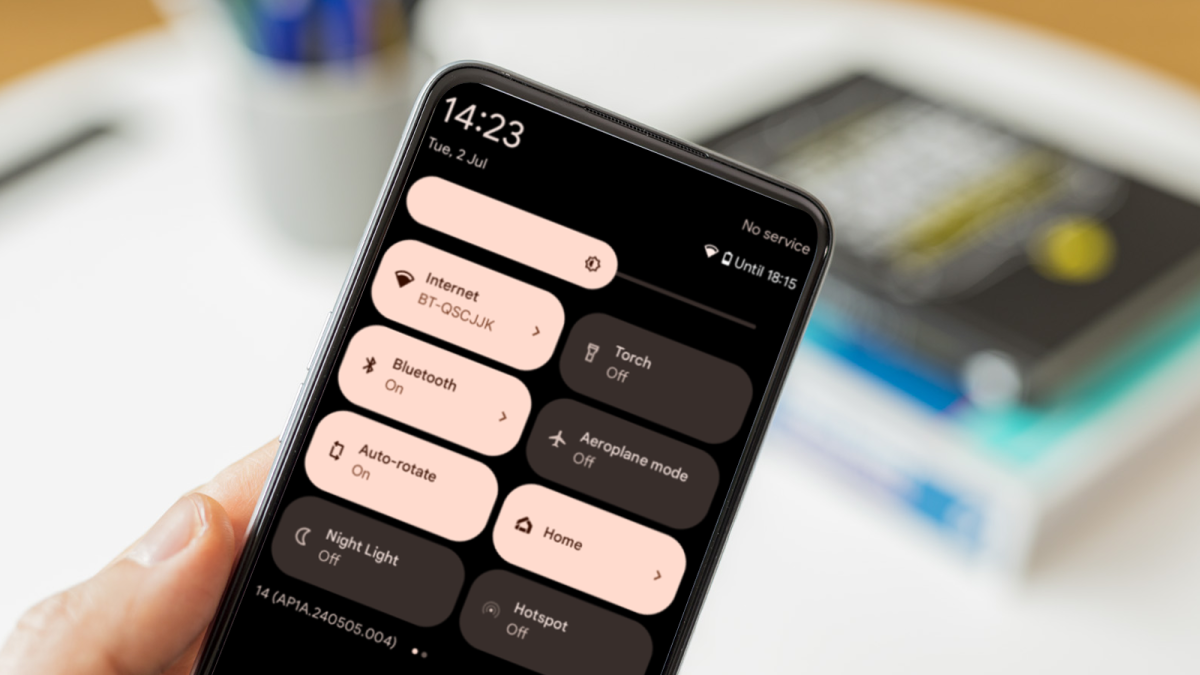
Android: Swipe down from the top of the display, then check that the Wi-Fi button is switched on. (It’s usually called Internet and will have a white background if it’s enabled.) Check that Aeroplane mode isn’t turned on by accident, as this will disable Wi-Fi.
Martyn Casserly & Domink Tomaszewski
Martyn Casserly & Domink Tomaszewski
Martyn Casserly & Domink Tomaszewski
Try rebooting your device
If none of the above works, then it’s always a good idea to try rebooting your device to see if this clears the issue. Simply power down your phone and restart it once again. If all goes well, the Wi-Fi problem should disappear.
Update your device
Sometimes updates can introduce unintended problems, including connectivity. You should check for updates before taking your phone to a repair shop.
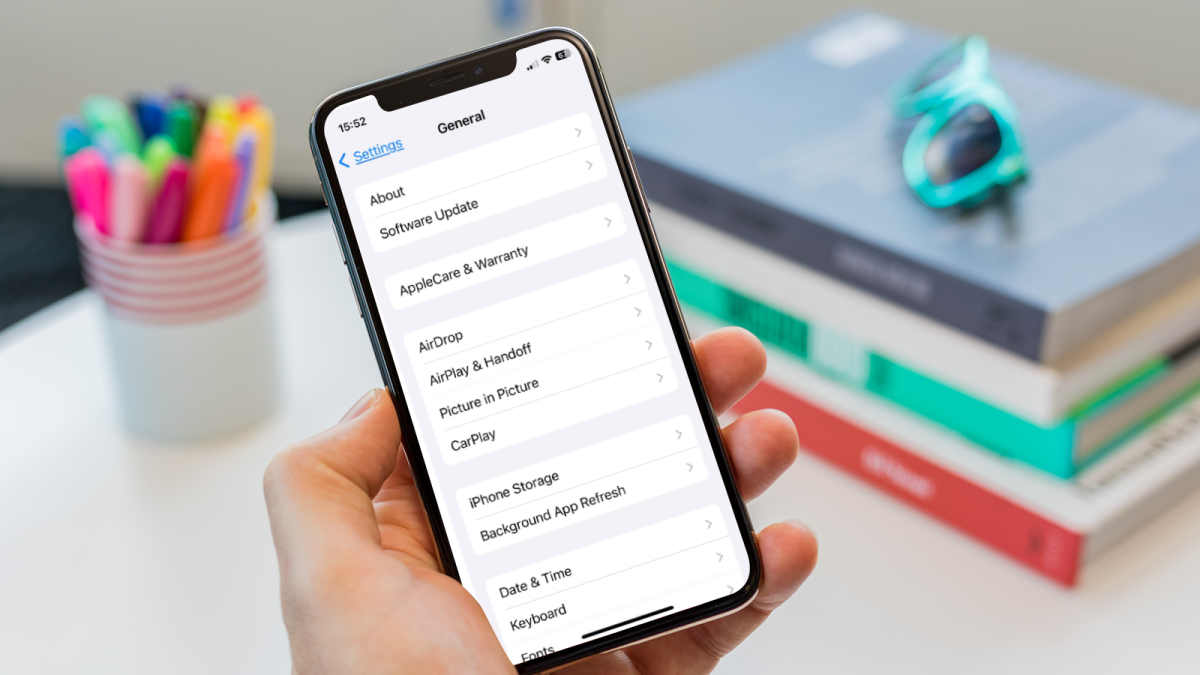
iPhone: Go to Settings > General > Software Update and see if there is an update available. If there is, install it and see if that corrects the problem with Wi-Fi.
Martyn Casserly & Dominik Tomaszewski
Martyn Casserly & Dominik Tomaszewski
Martyn Casserly & Dominik Tomaszewski
Android: As Android has several variants, these instructions may be slightly different depending on your device. For most though, it will be a case of opening up Settings > System > Software updates and installing any available updates.
There you go, several ways to fix connectivity problems on your smartphone. If you do find that there’s a hardware fault on your device, you can always check out our best budget smartphone, best midrange smartphone and best smartphone charts to pick up a replacement.

/origin-imgresizer.eurosport.com/2024/07/24/4008637-81310388-2560-1440.jpg?w=150&resize=150,150&ssl=1)


