




If job hunting has been draining the life out of you lately, you’re not alone. The endless cycle of tailoring resumes, rewriting the same career summaries, and filling out job forms that ask for your work history after you’ve uploaded your resume? Yeah, it gets old fast.
Enter Undetectable AI’s Smart Applier. It’s a tool designed to take that entire exhausting process and automate it—so you can apply to more jobs in less time, with less effort.
This article will walk you through the full setup process. No guesswork, no fluff. Just a clear, step-by-step guide to getting Smart Applier up and running.
How To Automatically Apply for Jobs with the Smart Applier
Step 1: Create or Log In to Your Undetectable AI Account
First things first, head over to Undetectable AI and either sign up for a free account or log in if you already have one.


Once you’re in, you’ll land on the dashboard. From here, you can access all of Undetectable AI’s tools, but today, we’re focusing on Smart Applier.
Step 2: Open the Smart Applier Tool
From the dashboard, look for the feature labeled Smart Applier. Click into it, and you’ll be taken to a setup screen.
This is where the real work (and magic) starts.
Step 3: Create Your Profile
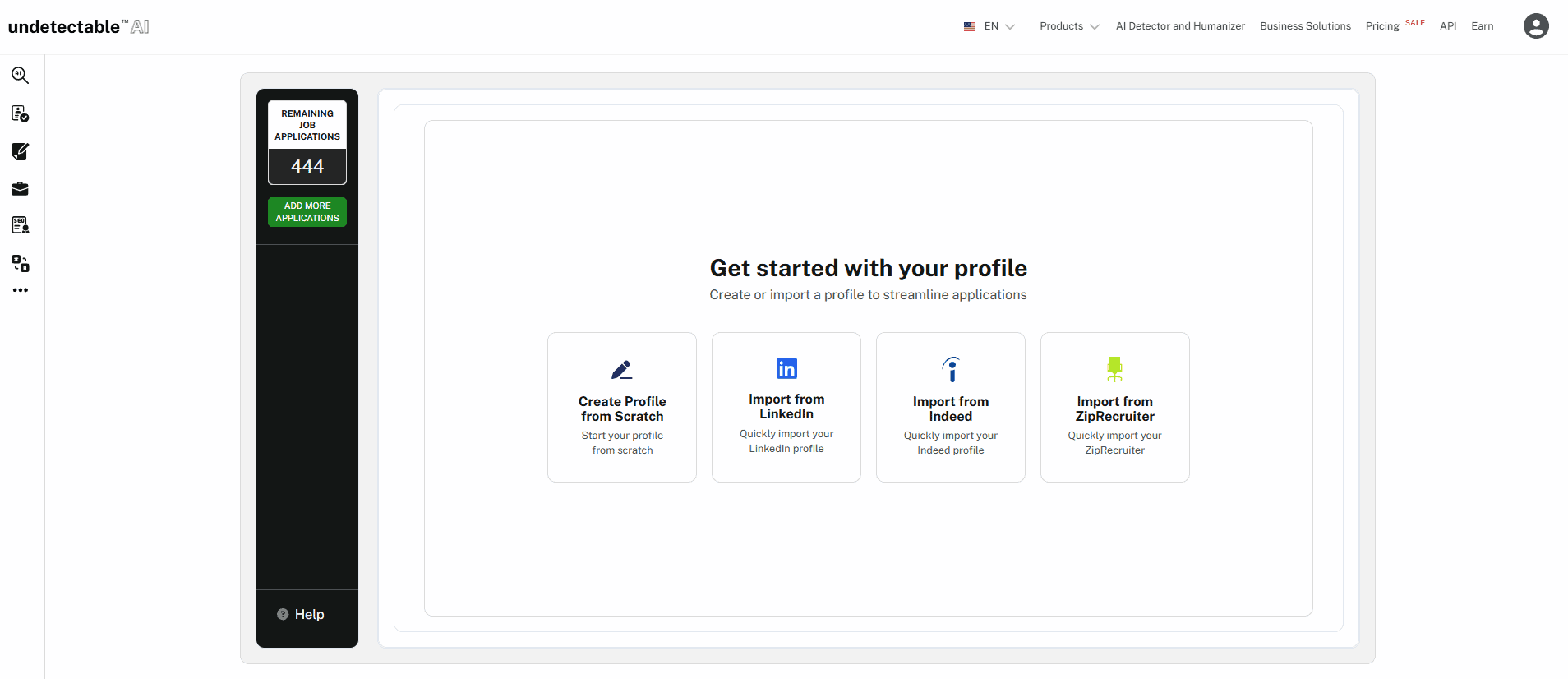
You have two options here:
- Build your profile from scratch
- Import from LinkedIn, Indeed, or ZipRecruiter
If you’re starting from scratch:
- Add your basic details: name, email, phone, location.
- Paste links to any relevant profiles (LinkedIn, portfolio, etc.)
- Upload a resume (if you have one handy)
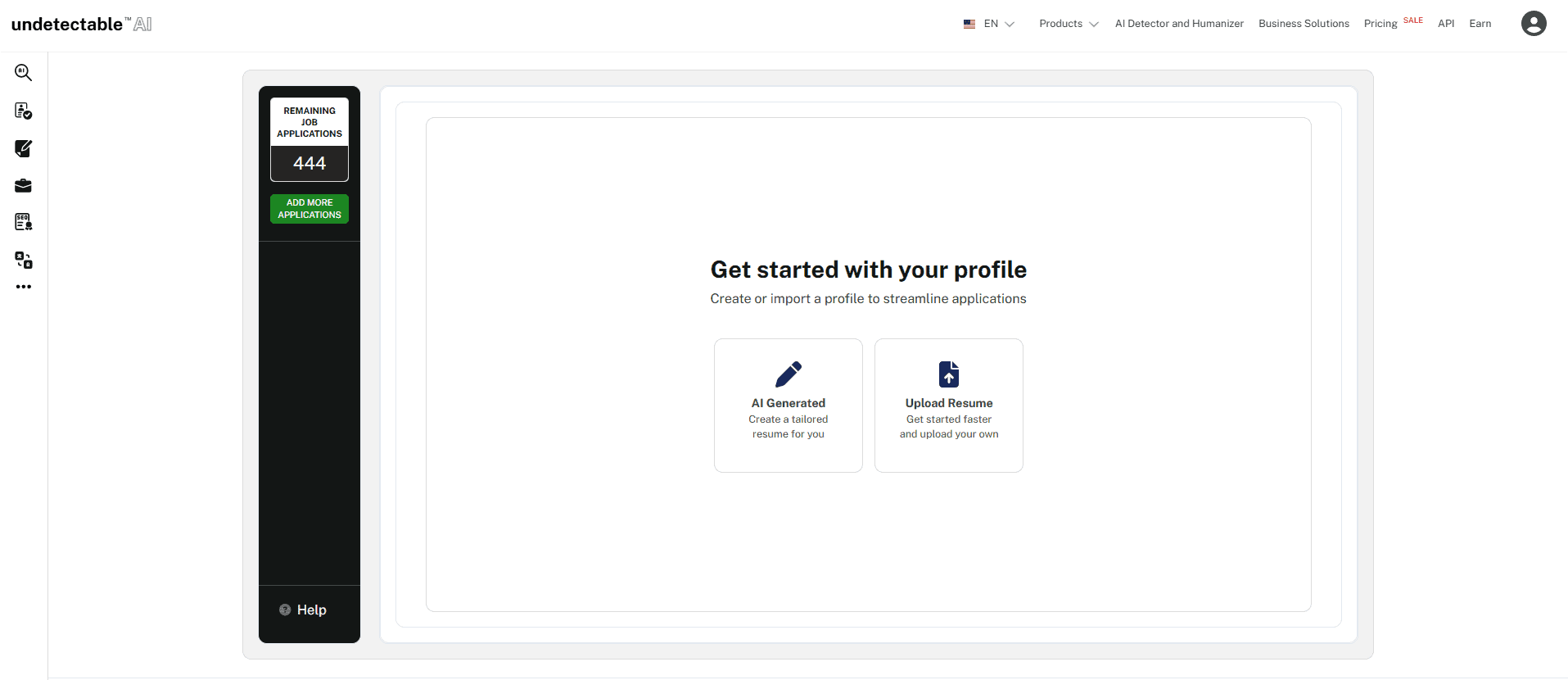
Once uploaded, the tool will parse your resume data—but don’t worry, you can edit everything manually too.
Step 4: Write Your Professional Summary
This section gives Smart Applier the info it needs to auto-generate job applications. Keep it short, relevant, and keyword-optimized.
You’ll be asked:
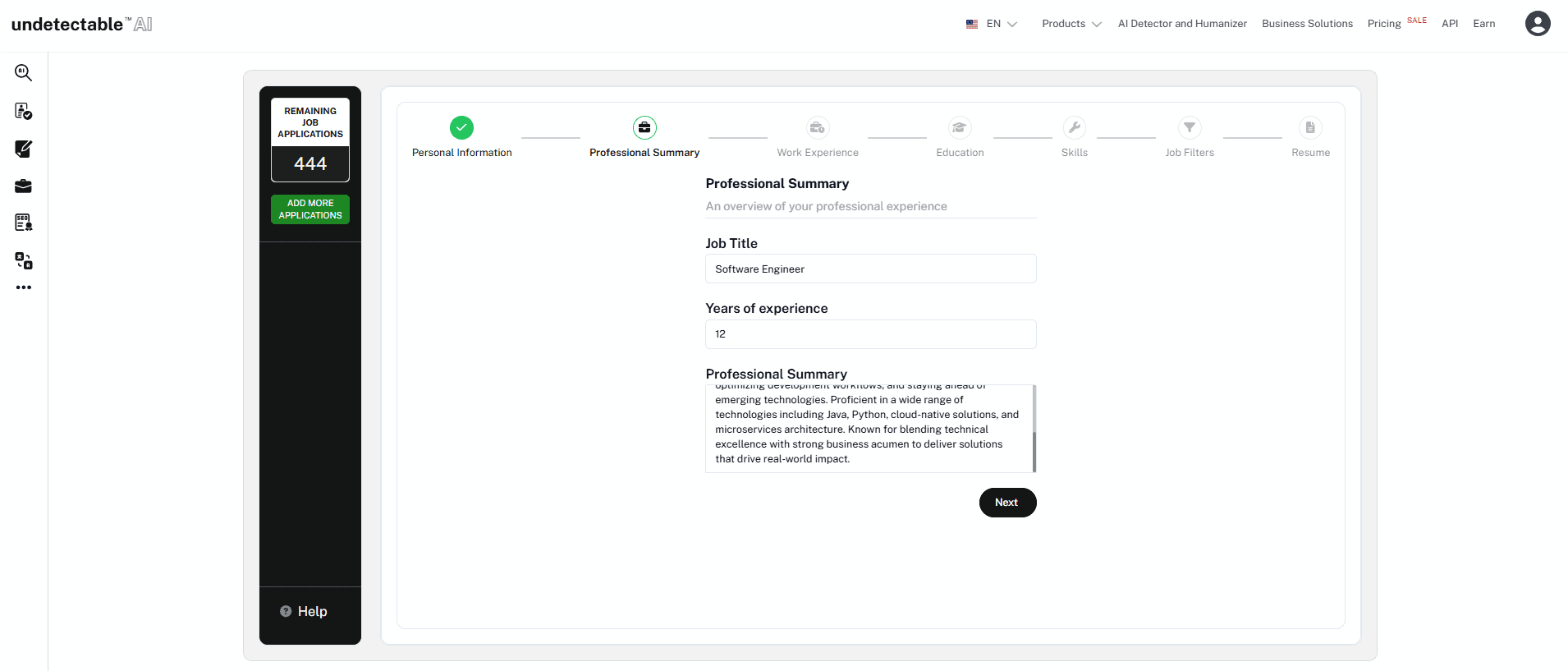
- What’s your current/most recent job title?
- How many years of experience do you have?
- What industries or roles are you targeting?
Pro tip: Be specific here. This summary will be reused across multiple applications, so treat it like a one-size-fits-all intro.
Step 5: Add Work and Education History
Now it’s time to plug in your work experience. If you uploaded a resume earlier, most of this should already be filled in. Double-check the dates, job titles, and companies to make sure they look right.
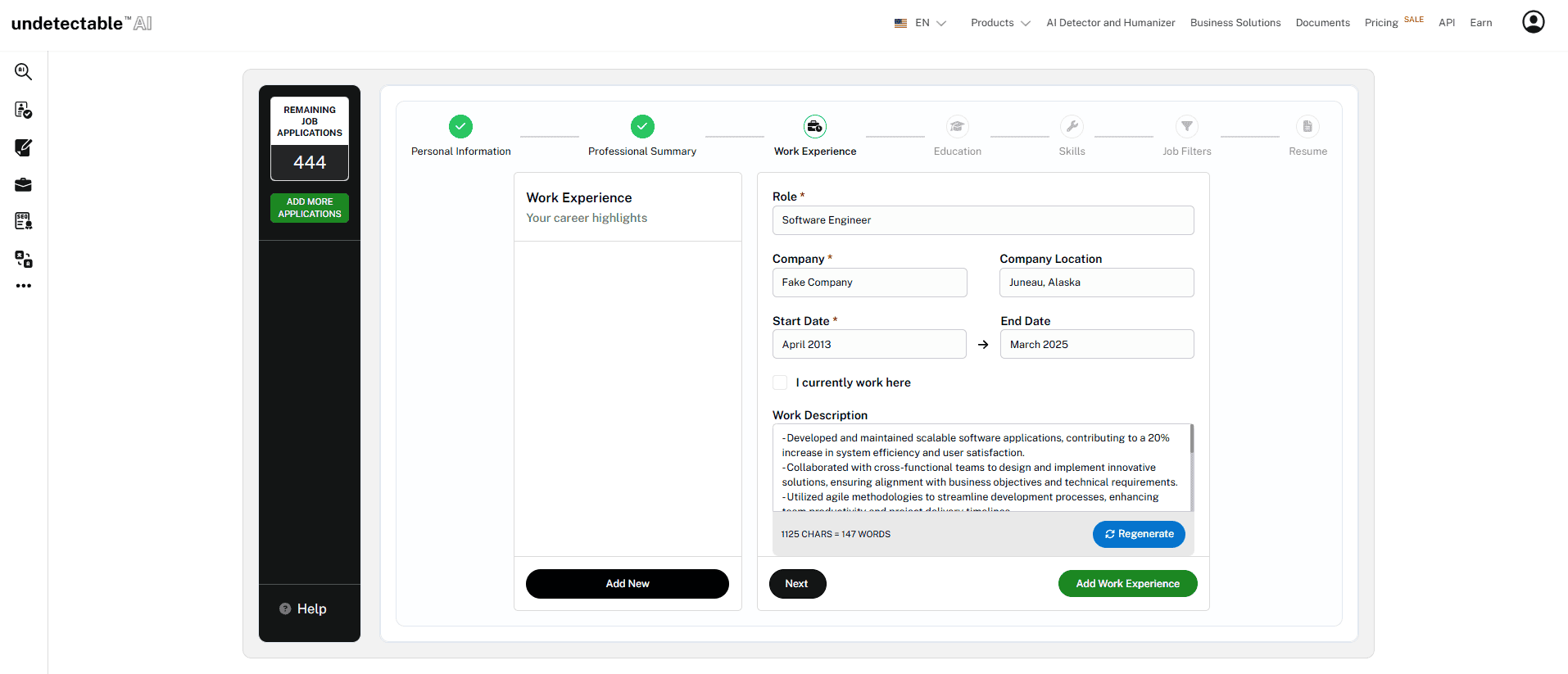
Undetectable AI also gives you a cool feature here: AI-generated job descriptions. Just type your job title and company, and it will auto-fill a solid summary of your responsibilities—which you can tweak as needed.
Next, fill out your education history. Keep it simple: school, degree, years attended.
Step 6: List Your Skills
This is where you show what you’re good at.
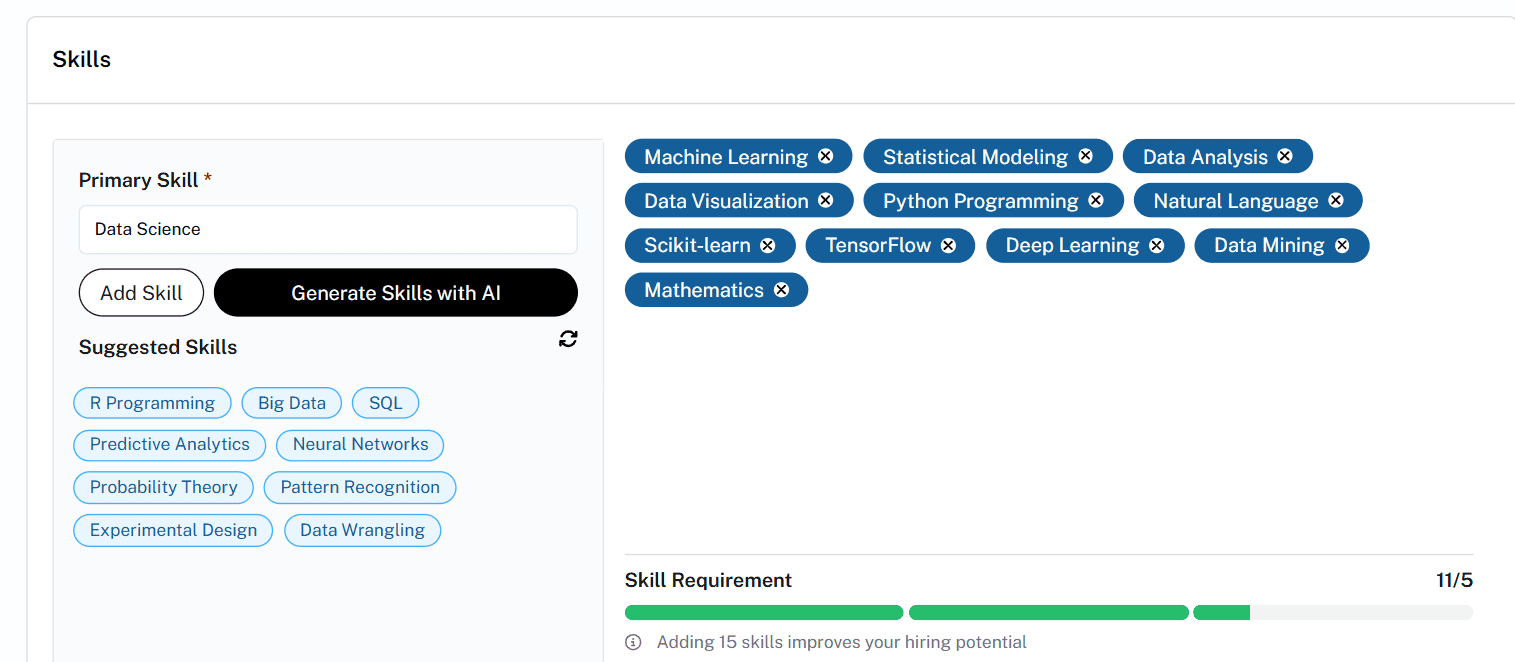
Start by picking a category like “Marketing,” “Data Science,” or “Software Engineering.” Smart Applier will then give you a list of related skills to choose from.
Click the ones that apply to you—or type in your own if they’re not listed.
Step 7: Set Job Preferences
Tell the Smart Applier what kinds of jobs you actually want. You can customize:
- Salary range
- Location (including remote only)
- Experience level
- Industry or job title
- Job type (full-time, part-time, freelance, etc.)
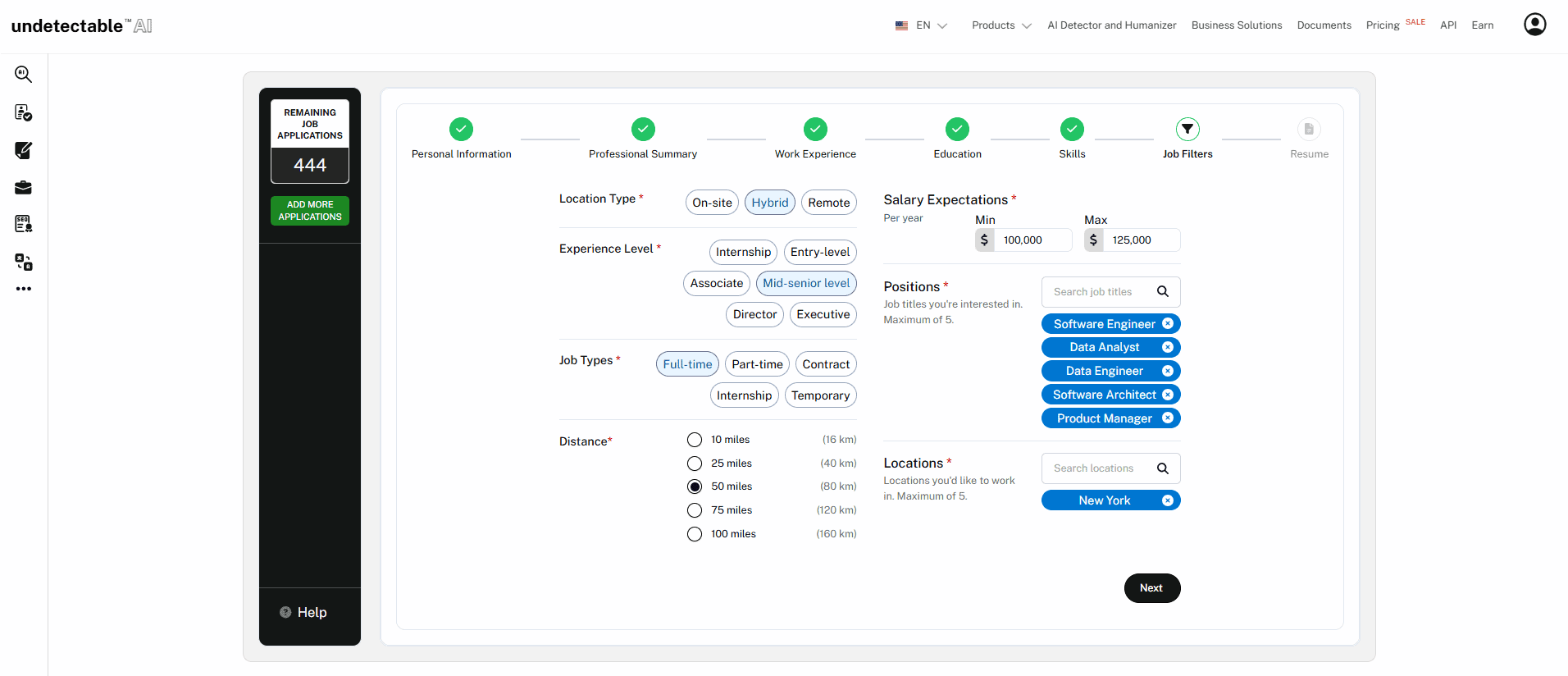
This step is crucial. The more specific you are, the better your results will be.
Step 8: Install the Chrome Extension
Now that your profile is good to go, it’s time to activate the tool. Download the Undetectable AI Auto Job Applier extension from the Chrome Web Store.
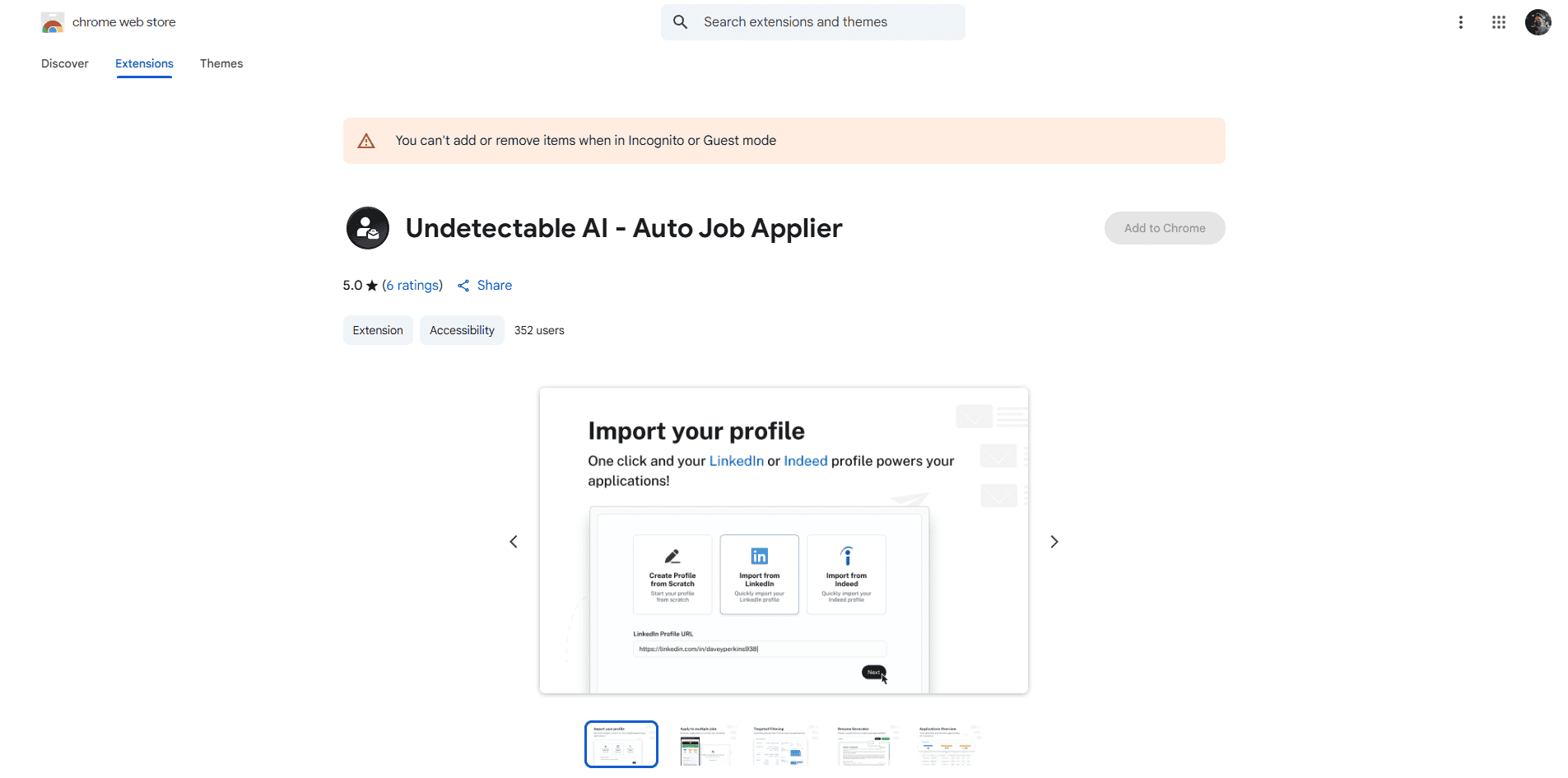
Once it’s installed, return to your Smart Applier dashboard and click Start Job Applications.
Step 9: Let It Apply For You
Your browser will open ZipRecruiter (for now), and the extension will start browsing job listings based on your preferences.
When it finds a match, it will automatically:
- Open the listing
- Tailor your resume/summary
- Fill out the job form
- Submit the application
You don’t need to lift a finger. Just let it run in the background:
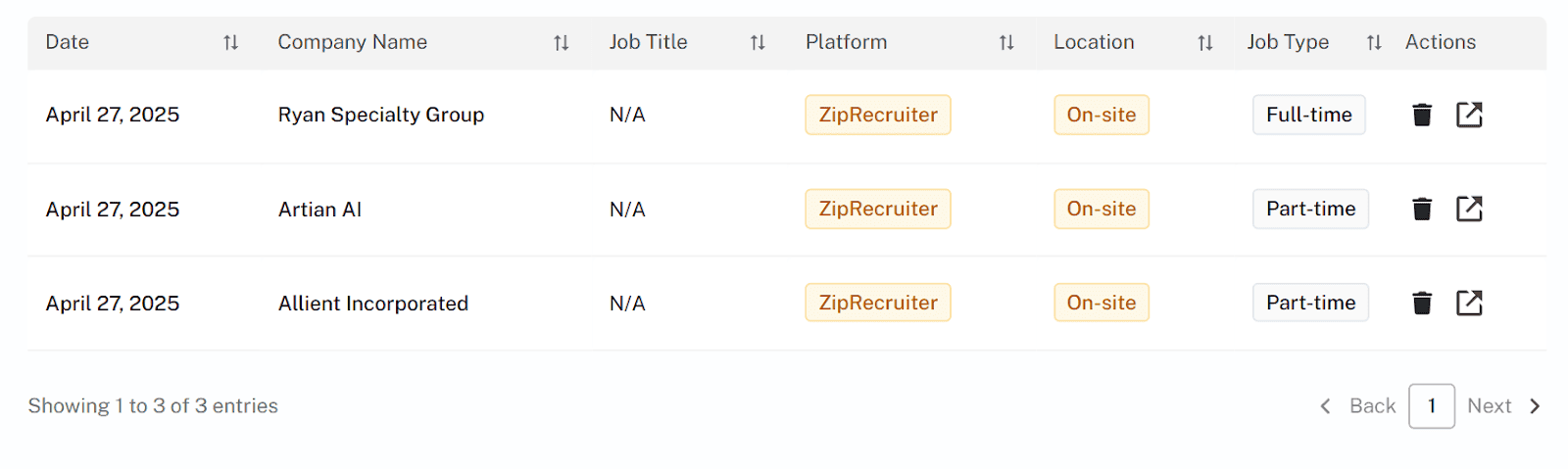
All jobs you’ve applied to will appear in your Application Tracker inside the Smart Applier tool.
The Bottom Line
And that’s it—you’re officially off the manual job application hamster wheel.
The first setup takes a little time (roughly 30 to 45 minutes), but once it’s done, you can let Smart Applier do the boring stuff while you focus on more important things—like prepping for interviews or finally getting a full night of sleep.
Undetectable AI’s Smart Applier isn’t just a nice-to-have. If you’re actively job hunting, it’s kind of a no-brainer.
Set it up once. Let it run. And let your job search work for you for a change.


