By using this site, you agree to the Privacy Policy and Terms of Use.
Accept
Viral Trending contentViral Trending content
  • Home
  • World News
  • Politics
  • Sports
  • Celebrity
  • Business
  • Crypto
  • Gaming News
  • Tech News
  • Travel
Reading: How to transfer data from Android phone to Android phone
Notification Show More
Viral Trending contentViral Trending content
  • Home
  • Categories
    • World News
    • Politics
    • Sports
    • Celebrity
    • Business
    • Crypto
    • Tech News
    • Gaming News
    • Travel
  • Bookmarks
© 2024 All Rights reserved | Powered by Viraltrendingcontent
Viral Trending content > Blog > Tech News > How to transfer data from Android phone to Android phone
Tech News

How to transfer data from Android phone to Android phone

By Viral Trending Content 6 Min Read
Share
SHARE

If you’ve got a new Android phone and want to make sure that all the data from your old one can transition across, it’s probably easier than you think.

Contents
Preparing your Android phones to transfer dataHow to transfer data from one Android phone to anotherPowering upGet onlineLet Android do its thingTime to start the importGrab your cableConnect your phonesFinish the processCopy files via Wi-FiHow long does it take to transfer data from Android to Android?Related articles

You shouldn’t have to worry about loads of complicated processes, as Android has a built-in feature that allows you to seamlessly bring the files, apps and data from one Android device to another while you’re setting it up. 

Depending on how much data you’re moving, the process could take a while to complete, but actually getting it started is relatively straightforward.

Preparing your Android phones to transfer data

Before we start, there are a few things you’ll need in place. Firstly, you’ll want to make sure both the new and old phones have plenty of charge. If it ran out during the transfer, you might have to start again, and some phones require you to have a certain amount of battery before you can proceed.

You’ll also need to have the password, PIN code or biometrics for unlocking the old phone, as this prevents someone grabbing it and moving all your data onto one of their devices. 

On the old device, log in with your Google account, or create one if you don’t have one, but as this is Android there’s a pretty good chance you do. 

Of course, you’ll need to make sure that all your data has been backed up recently. On many Android phones, it can be found via Settings > Google > Backup > Back up now, though this method can vary slightly.

If you can’t find it, just search for ‘backup’ in your Settings app.
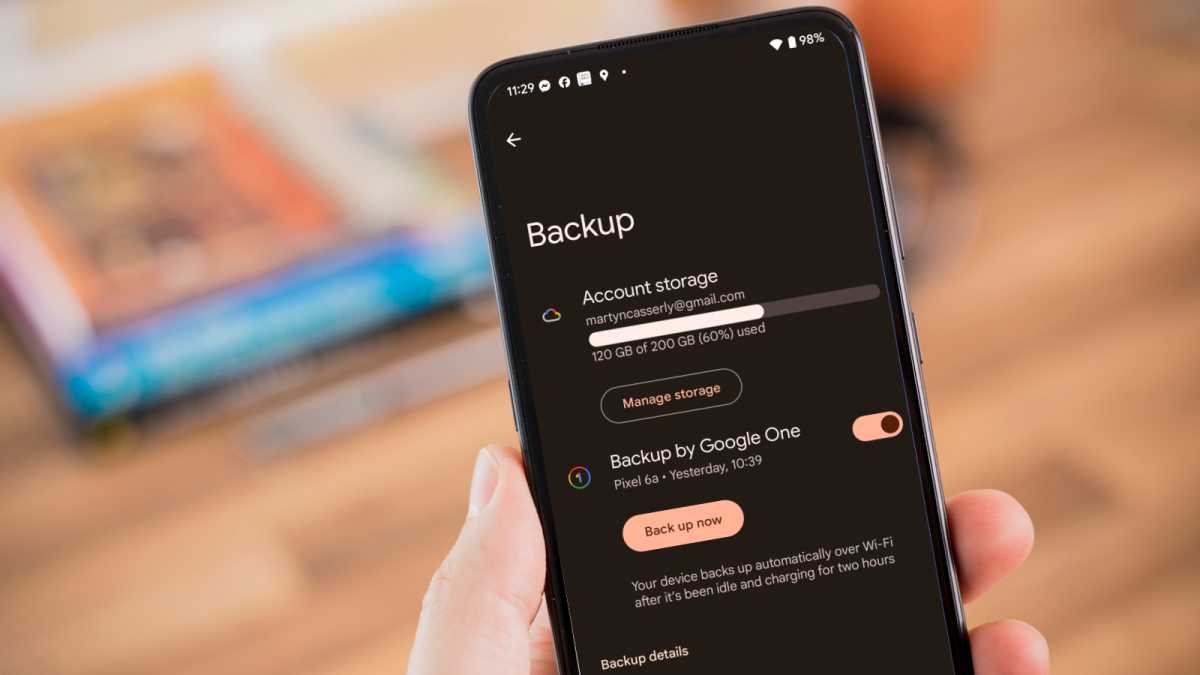
How to transfer data from Android to Android

How to transfer data from Android to Android

Martyn Casserly

How to transfer data from Android to Android

Martyn Casserly

Martyn Casserly

Wait for the backup to complete, which may take a few minutes

WhatsApp isn’t usually included, so do the same for it. Open the app, tap the three dots in the top-right corner, then Settings > Chats > Chat backup and tap the green ‘Back up’ button.

Right, with your backup done, phones charged and logged in, you’re ready to go. 

How to transfer data from one Android phone to another

1.

Powering up

How to transfer data from Android to Android

Martyn Casserly

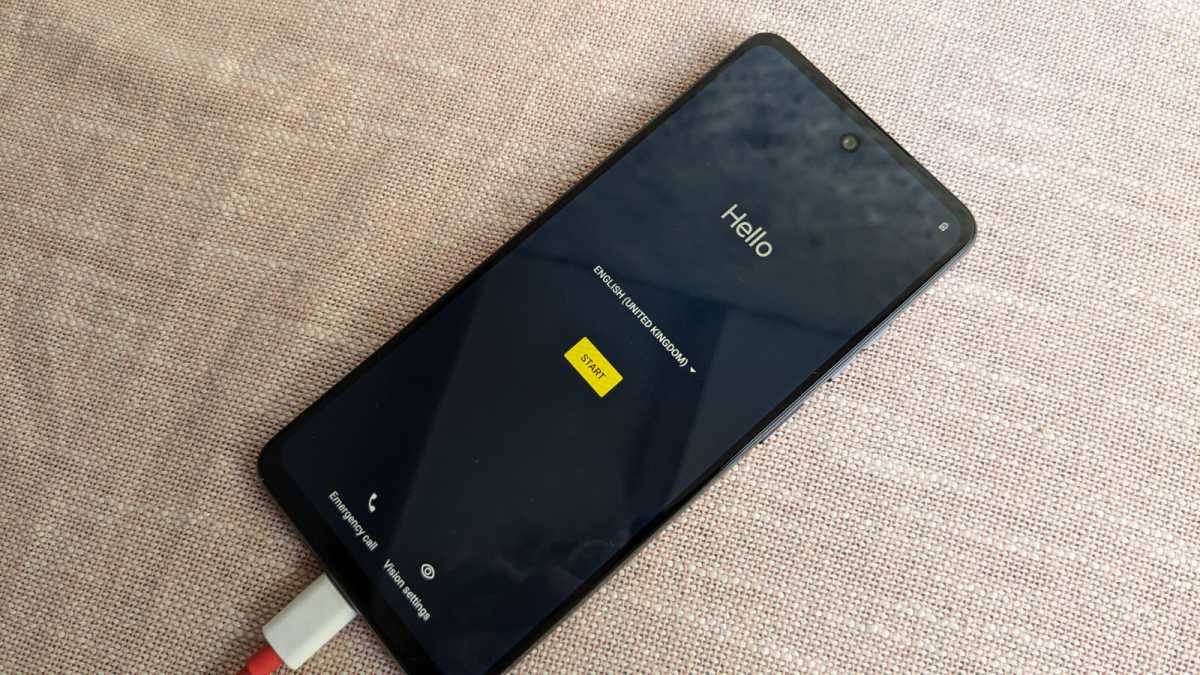
Turn on your new phone and select the Start option. 

2.

Get online

How to transfer data from Android to Android

Martyn Casserly

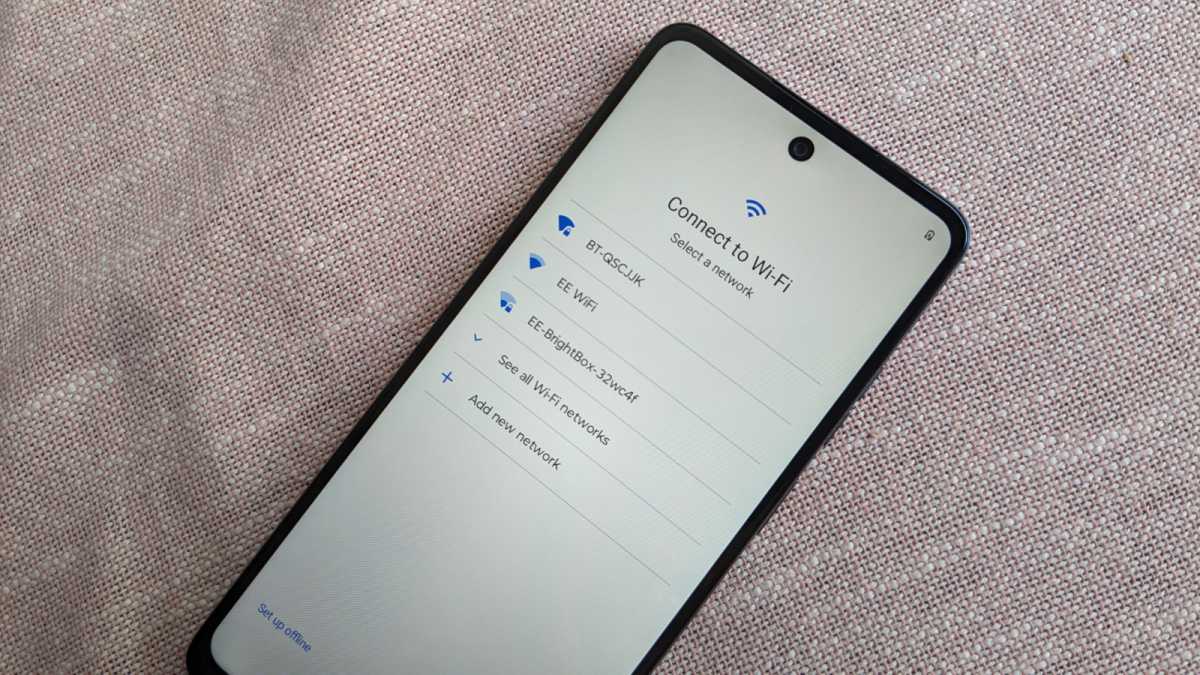
You should be prompted to sign on to a Wi-Fi network. Be sure to do this, as it’s an important part of the process. 

3.

Let Android do its thing

How to transfer data from Android to Android

Martyn Casserly

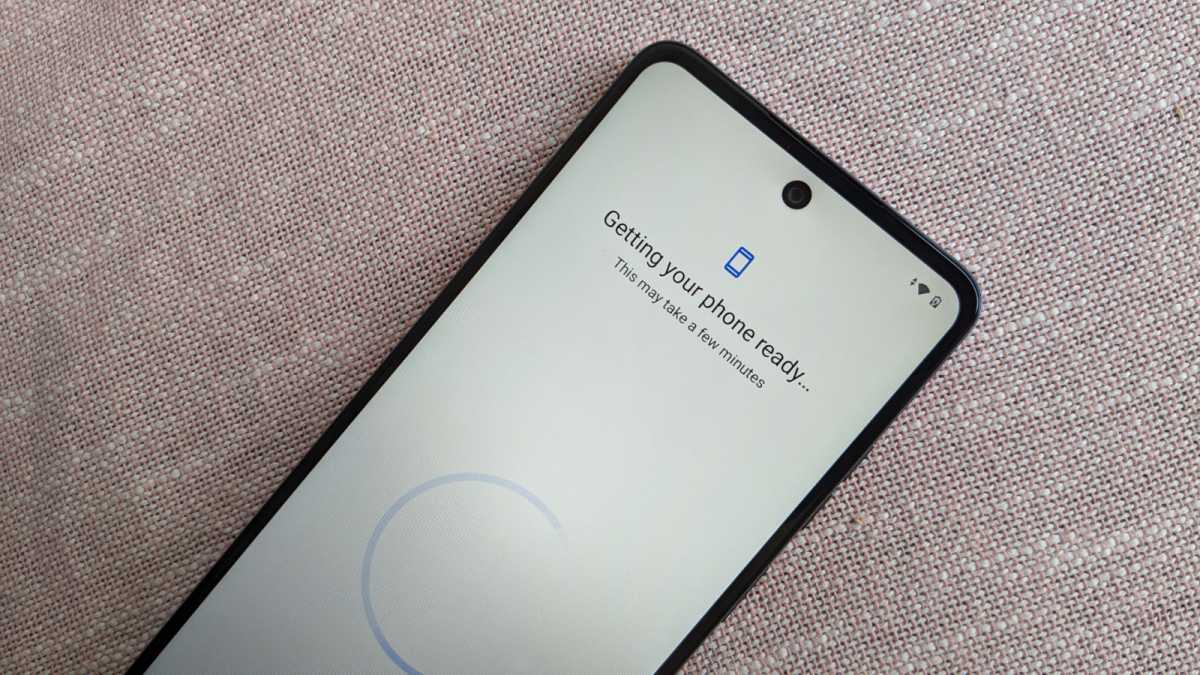
It will be a few minutes of waiting now, as the phone sets up Android and prepares for you to import files. 

4.

Time to start the import

How to transfer data from Android to Android

Martyn Casserly

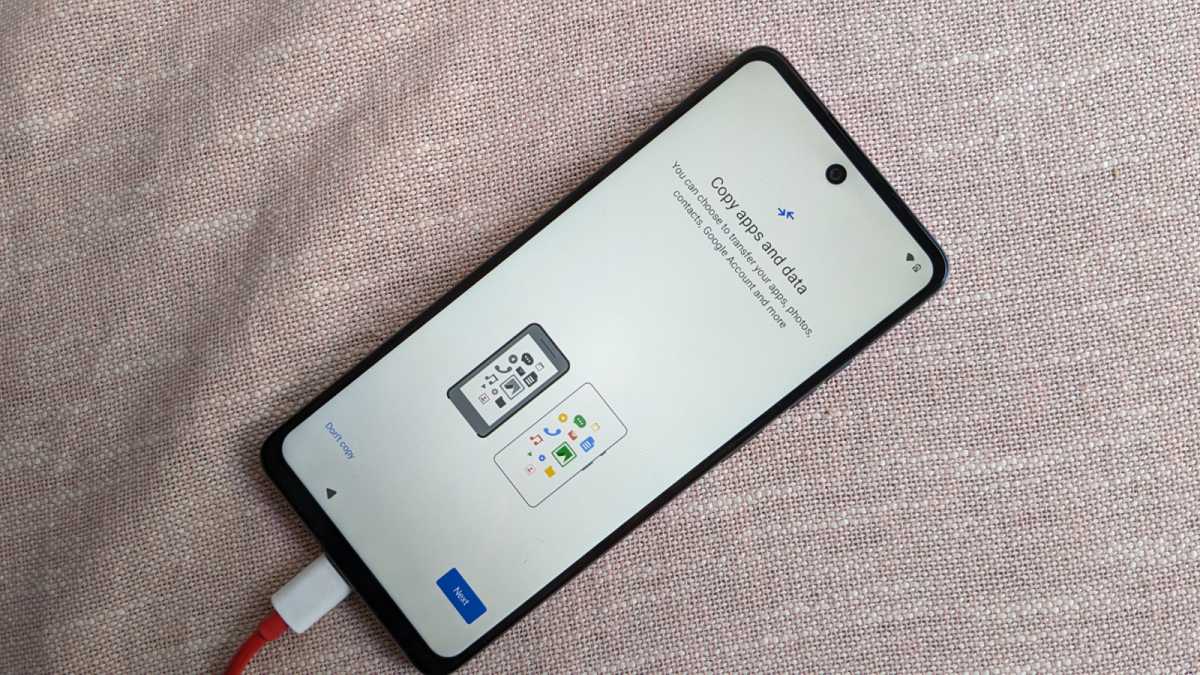
Now you’ll see a page that asks you to Copy apps and data from your old phone. Select the Next button to begin. Then, on the following page that says ‘Use your other device’, select Next again.

5.

Grab your cable

How to transfer data from Android to Android

Martyn Casserly

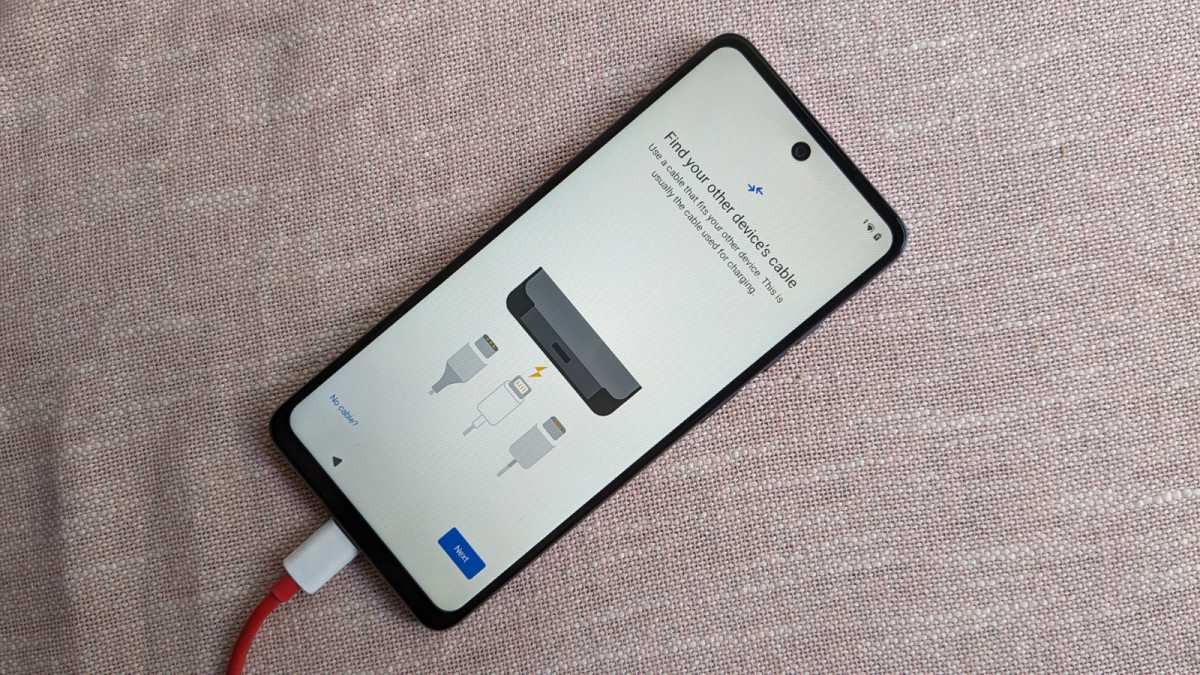
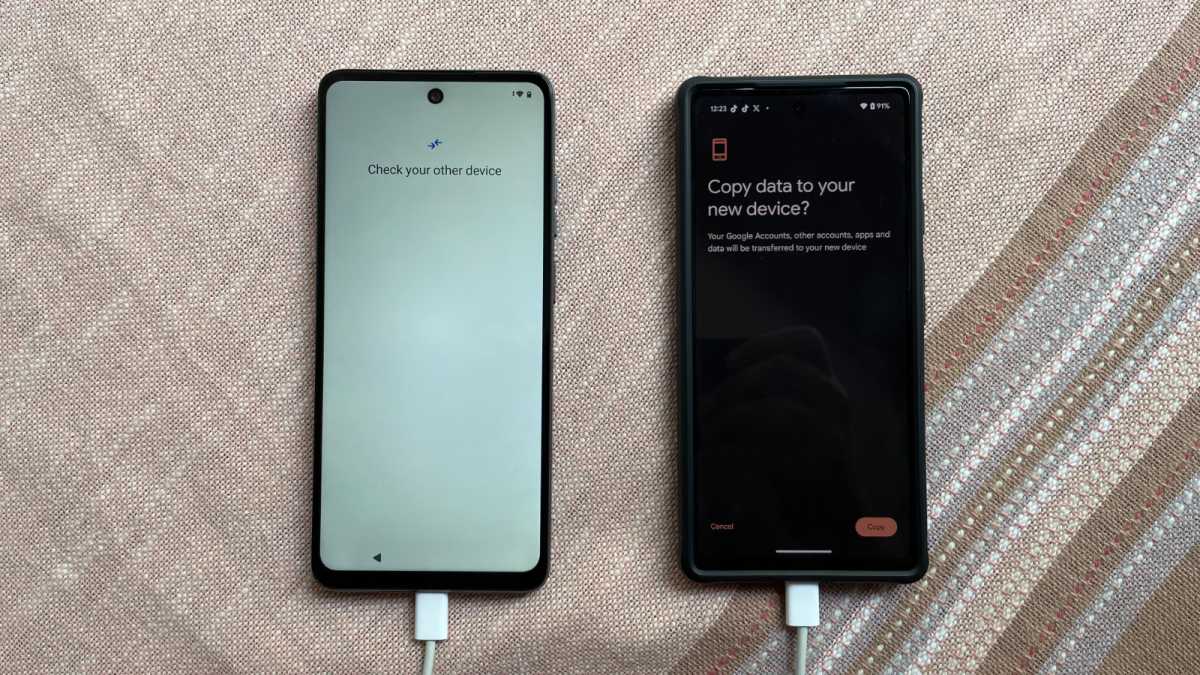
If you have a cable that can connect to both your old phone and your new one (usually the charging cable will do the trick) then you should now get it ready, then click Next. On the following page you’ll be told to plug the cable into the old device, then click Next.

If you don’t have a cable, tap the No cable? option and skip to Step 8.

6.

Connect your phones

How to transfer data from Android to Android

Martyn Casserly

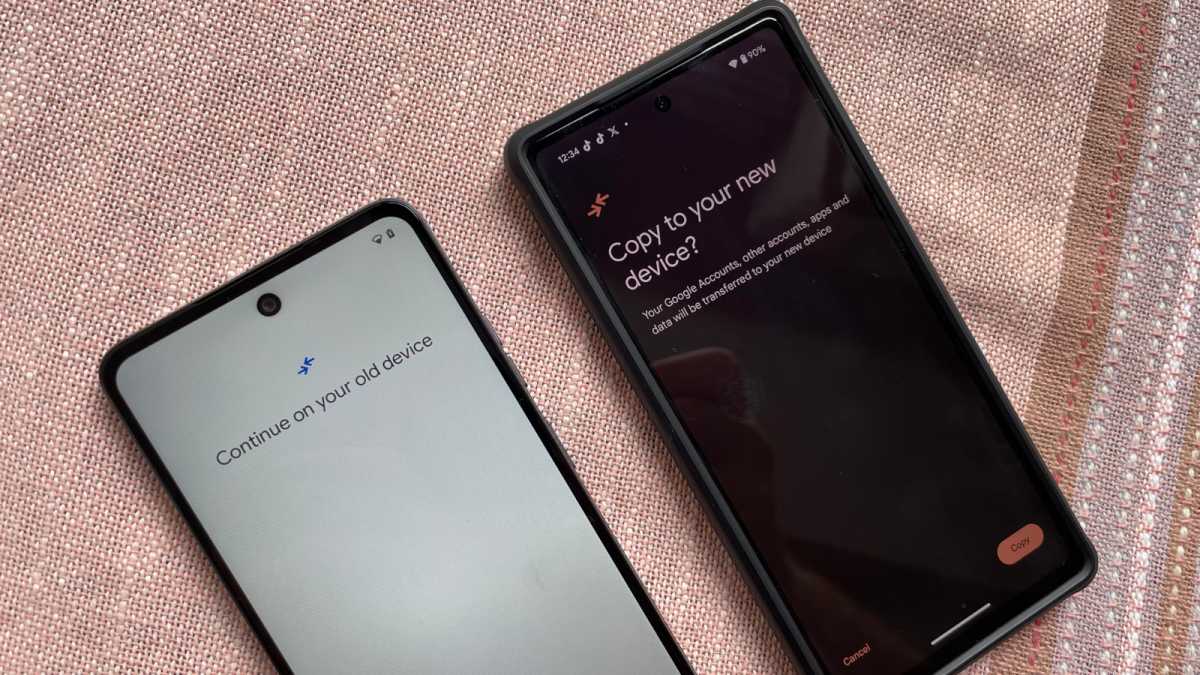
Now you’ll need to plug the cable into your new phone so the two are connected. Then, click the Copy option on your old phone.  

7.

Finish the process

How to transfer data from Android to Android

Martyn Casserly

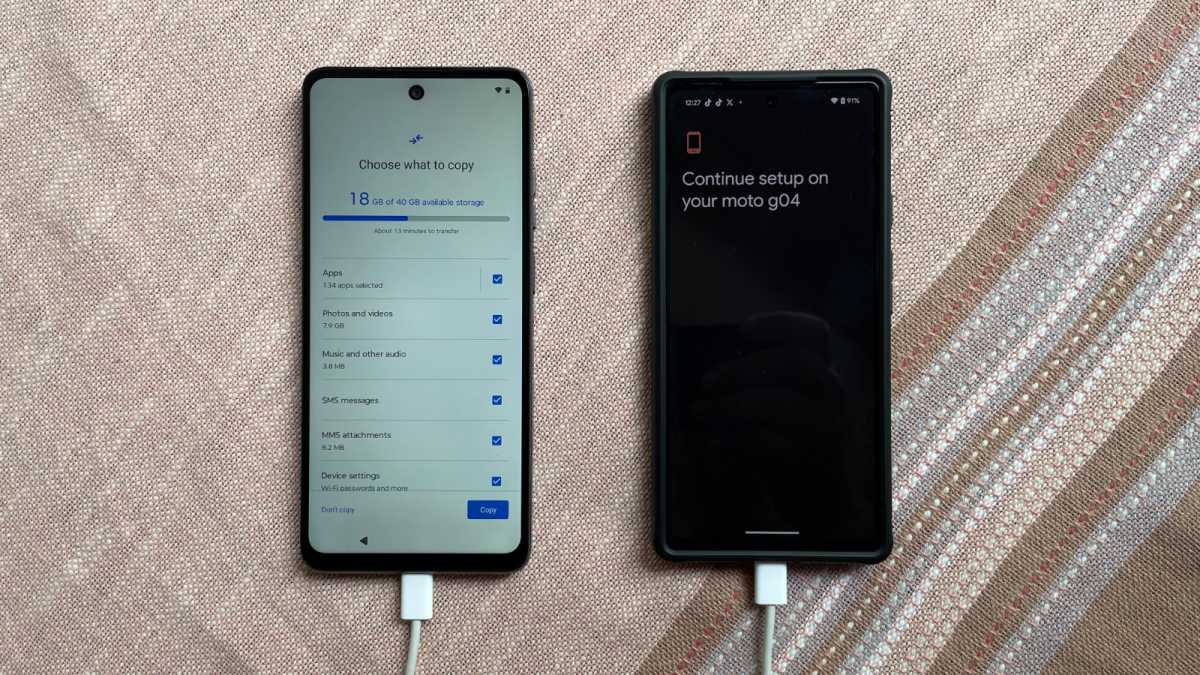
You’ll need to select what to copy and other details from this point, so just follow the instructions on the phones and you should soon have your data safely nestled in the hard drive of your new device.

8.

Copy files via Wi-Fi

How to transfer data from Android to Android

Martyn Casserly

If you don’t have a cable you can still import your data using Wi-Fi and the backup you made earlier. To do this, choose Next on the page entitled Use your old device to transfer data wirelessly. 

Then follow the steps on the screen to import your data.

How long does it take to transfer data from Android to Android?

There’s no precise speeds that we can point to here, only that using a cable will be substantially faster than the Wi-Fi method.

So, if you can find the correct cable to connect your two phones then you’ll have the data moved across relatively quickly.

As an example, while testing this out, the estimated time for importing the files on our test devices was around 13 minutes by cable, but the best part of an hour via Wi-Fi. The Wi-Fi speeds are of course dependent on the speed of your connection, so it could be faster or slower.

Related articles

You Might Also Like

Apple AI Pin Specs Leak: Dual Cameras, No Screen & More

The diverse responsibilities of a principal software engineer

OpenAI Backs Bill That Would Limit Liability for AI-Enabled Mass Deaths or Financial Disasters

Google’s Fitbit Tease has me More Excited for Garmin’s Whoop Rival

Why the TCL NXTPAPER 14 Is One of the Best Tablets for Musicians and Sheet Music Reading

TAGGED: cool tech, latest technology, latest technology news, new technology, science and technology, tech, Tech News, tech review, technews, technological advances, technology definition, technology reviews, what is technology
Share This Article
Facebook Twitter Copy Link
Previous Article ANC looks set to share power after historic election loss
Next Article Northampton Saints battle past Saracens to book spot in Twickenham final
Leave a comment

Leave a Reply Cancel reply

Your email address will not be published. Required fields are marked *

- Advertisement -
Ad image

Latest News

JPMorgan CEO Jamie Dimon says he’s ‘learned and relearned’ to not make big decisions when he’s tired on Fridays
Business
Apple AI Pin Specs Leak: Dual Cameras, No Screen & More
Tech News
A ‘glass-like’ battlefield: German Army chief on the future of warfare
World News
Polymarket Sees Record $153M Daily Volume After Chainlink Integration
Crypto
Natasha Lyonne Then & Now: See Before & After Photos of the Actress Here
Celebrity
Cult Hit Doki Doki Literature Club Fights Removal From Google Play Store Over ‘Depiction Of Sensitive Themes’
Gaming News
Dead as Disco Launches Into Early Access on May 5th, Groovy New Gameplay Released
Gaming News

About Us

Welcome to Viraltrendingcontent, your go-to source for the latest updates on world news, politics, sports, celebrity, tech, travel, gaming, crypto news, and business news. We are dedicated to providing you with accurate, timely, and engaging content from around the globe.

Quick Links

  • Home
  • World News
  • Politics
  • Celebrity
  • Business
  • Home
  • World News
  • Politics
  • Sports
  • Celebrity
  • Business
  • Crypto
  • Gaming News
  • Tech News
  • Travel
  • Sports
  • Crypto
  • Tech News
  • Gaming News
  • Travel

Trending News

cageside seats

Unlocking the Ultimate WWE Experience: Cageside Seats News 2024

Investing £5 a day could help me build a second income of £329 a month!

JPMorgan CEO Jamie Dimon says he’s ‘learned and relearned’ to not make big decisions when he’s tired on Fridays

cageside seats
Unlocking the Ultimate WWE Experience: Cageside Seats News 2024
May 22, 2024
Investing £5 a day could help me build a second income of £329 a month!
March 27, 2024
JPMorgan CEO Jamie Dimon says he’s ‘learned and relearned’ to not make big decisions when he’s tired on Fridays
April 10, 2026
Brussels unveils plans for a European Degree but struggles to explain why
March 27, 2024
© 2024 All Rights reserved | Powered by Vraltrendingcontent
  • About Us
  • Contact US
  • Disclaimer
  • Privacy Policy
  • Terms of Service
Welcome Back!

Sign in to your account

Lost your password?