
By using this site, you agree to the Privacy Policy and Terms of Use.
Accept
Viral Trending contentViral Trending content
  • Home
  • World News
  • Politics
  • Sports
  • Celebrity
  • Business
  • Crypto
  • Gaming News
  • Tech News
  • Travel
Reading: How to Scan Documents With Your Phone’s Camera
Notification Show More
Viral Trending contentViral Trending content
  • Home
  • Categories
    • World News
    • Politics
    • Sports
    • Celebrity
    • Business
    • Crypto
    • Tech News
    • Gaming News
    • Travel
  • Bookmarks
© 2024 All Rights reserved | Powered by Viraltrendingcontent
Viral Trending content > Blog > Tech News > How to Scan Documents With Your Phone’s Camera
Tech News

How to Scan Documents With Your Phone’s Camera

By Viral Trending Content 5 Min Read
Share
SHARE

With home offices now the norm for many people, you may often need to send paper documents via email. Instead of using a traditional scanner, you can achieve scanner-like results using your smartphone.

Contents
Tips for taking better photos of documentsScan documents with Google DriveScan documents on iPhone with the Notes appScanning documents with other apps

Simply taking a photo is an option, but better results can be obtained by using digital scanner apps or specific features of select camera apps found on the best Android phones or the best iPhones.

This guide will walk you through the process of scanning documents using your phone’s camera, offering tips and showcasing various apps for achieving the best results.

Tips for taking better photos of documents

Before getting to the apps themselves, here are a few tips to get the best quality: you don’t want skewed text or shadows making them hard to read.

For lighting, use natural light by placing the document near a window or in a well-lit area. Ensure there are no shadows cast on the document from your hands or nearby objects, and avoid harsh lighting or direct sunlight, which can cause glare.

When positioning the document, place it on a flat surface to avoid any curvature or folds. Hold your phone directly above the document, ensuring it’s parallel to the surface to avoid distortion. Make sure the entire document is within the frame, with some margin around the edges for cropping.

For focus and stability, allow your camera to auto-focus on the document before taking the picture. Use both hands to hold your phone steady or rest your elbows on a stable surface.

Scan documents with Google Drive

You may not know it, but Google Drive has a built-in scanner feature that you can use to digitise documents, old photos and other printed material. To use it, do the following:

  1. Launch the Google Drive app on your Android or iOS device.
  2. Tap the ‘+’ button in the bottom right corner and select ‘Scan’.
  3. Position your phone over the document and press the shutter button to capture the image.
  4. Adjust the corners to fit the document and tap ‘Done’.
  5. Name your document and select the location where you want to save it. Tap ‘Save’.
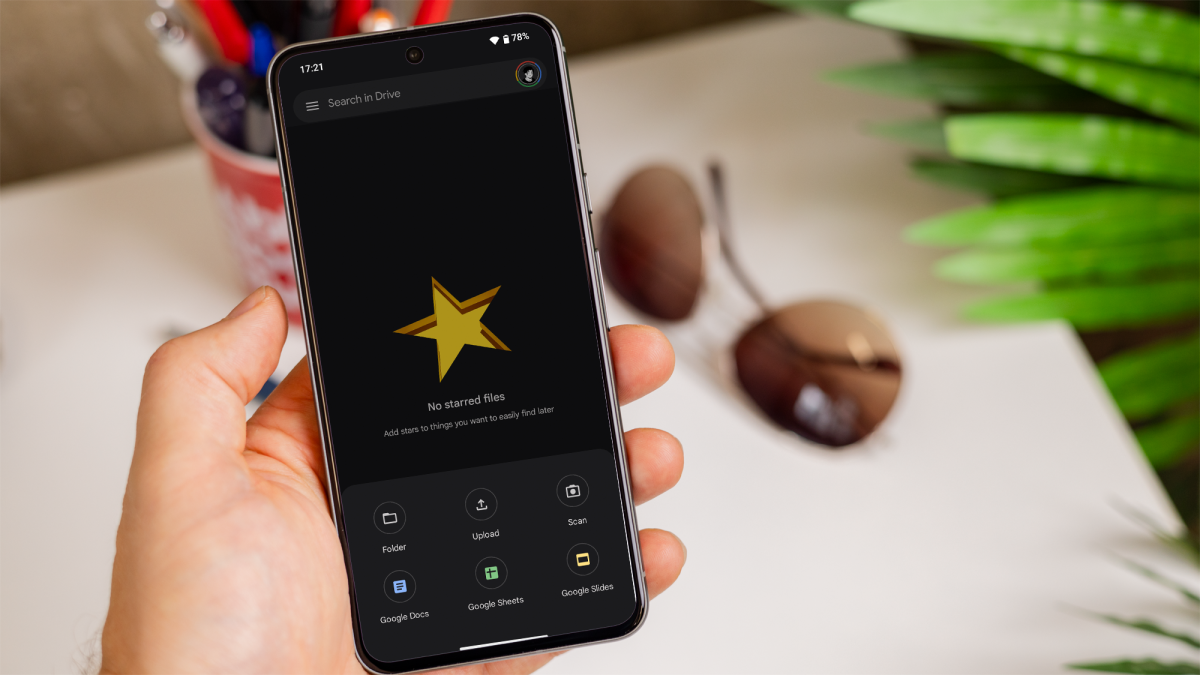
How to scan documents with your phone's camera

How to scan documents with your phone's camera

Dominik Tomaszewski / Foundry

How to scan documents with your phone's camera

Dominik Tomaszewski / Foundry

Dominik Tomaszewski / Foundry

The newly scanned image will then be saved as PDF to your Google Drive folder, allowing you to share it via email or any other messaging app.

Scan documents on iPhone with the Notes app

As with Google Drive, Apple’s Notes app also has a free built-in scanner that can digitise your documents with. Follow these steps:

  1. Launch the Notes app on your iPhone.
  2. Tap the ‘New Note’ icon and press the camera icon in the toolbar.
  3. Select ‘Scan Documents’. Then, position your phone over the document and the app will automatically capture it.
  4. Adjust the scan by dragging the corners, if needed.
  5. Tap ‘Keep Scan’ for each page you scan.
  6. When done, tap ‘Save’ to add the scanned document to your note.
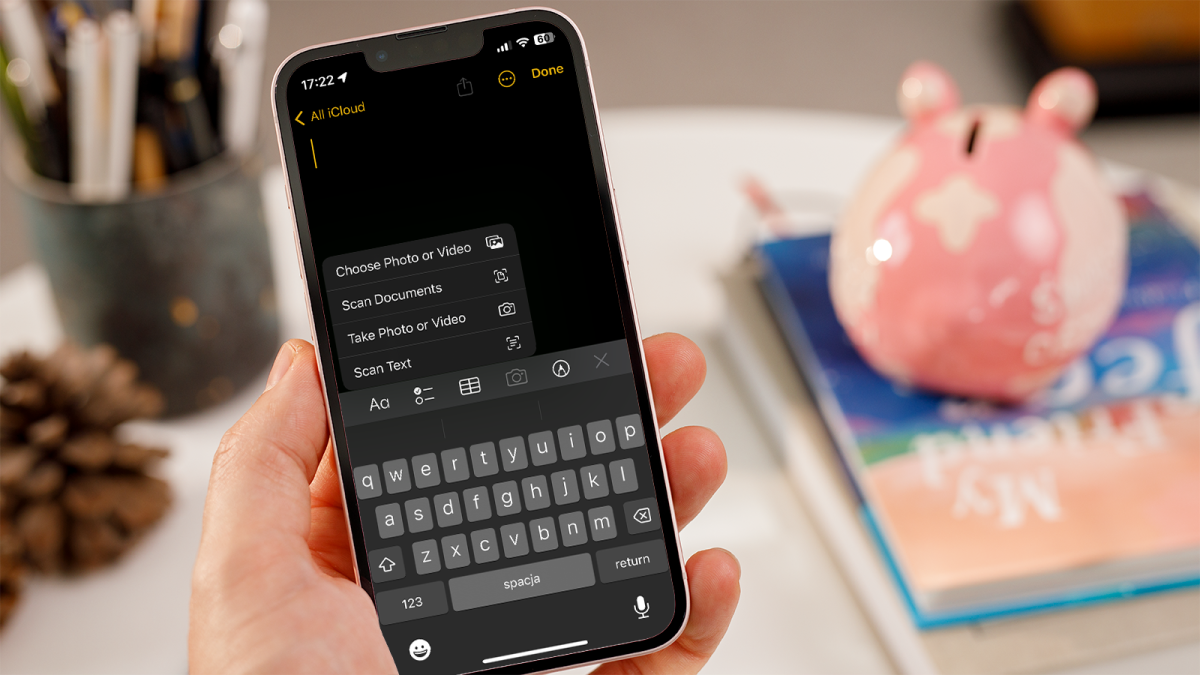
How to scan documents with your phone's camera

How to scan documents with your phone's camera

Dominik Tomaszewski / Foundry

How to scan documents with your phone's camera

Dominik Tomaszewski / Foundry

Dominik Tomaszewski / Foundry

You can now share the scanned document or export it as a PDF directly from the Notes app.

Scanning documents with other apps

If the methods above don’t quite do it for you, maybe because you need a specific feature they don’t offer, then there are many alternatives. If you have a Microsoft 365 account, then the Microsoft Office Lens – PDF Scanner is a great option, but you should also check out SwiftScan, Genius Scan, and Simple Scan, as well as the many others available in the Google Play Store and Apple App Store.

One that’s completely free, with no limits and no adverts is FP Scanner-PDF&Image to Text. It’s only for iOS, unfortunately, but it has various modes that let you ‘scan’ multiple pages of a book or document and share it as a PDF, as well as the ability to convert characters into editable text. Though, as mentioned at the start, that is somewhat redundant if you have at least iOS 15.
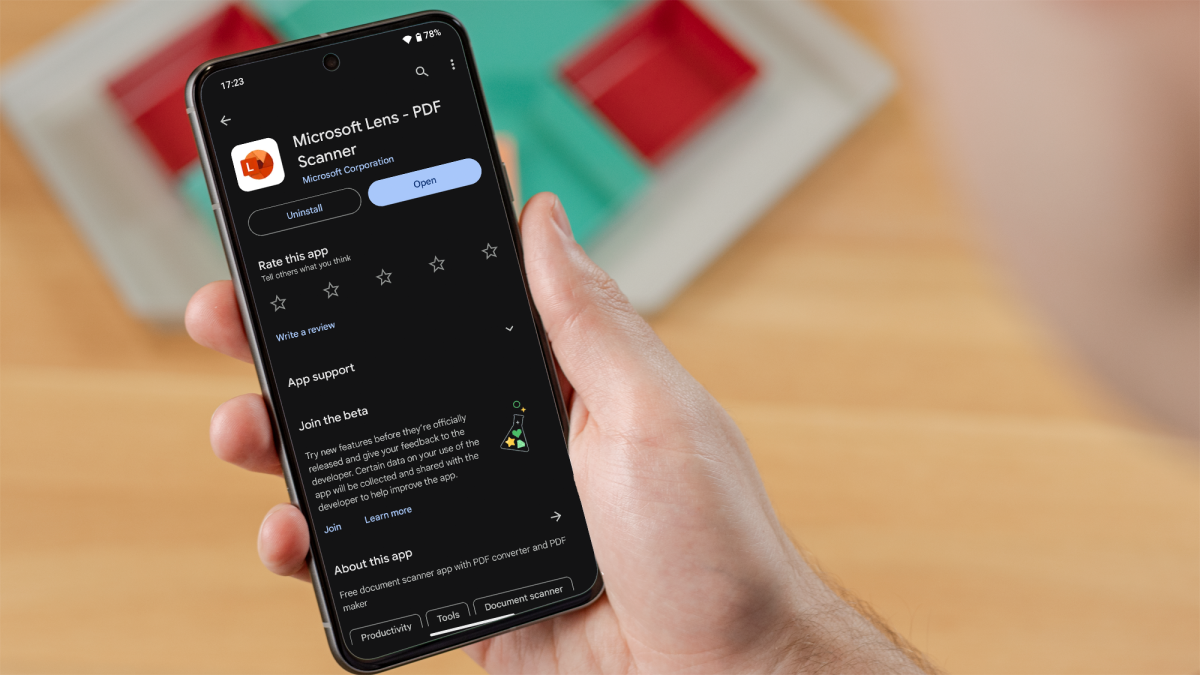
How to scan documents with your phone's camera

How to scan documents with your phone's camera

Dominik Tomaszewski / Foundry

How to scan documents with your phone's camera

Dominik Tomaszewski / Foundry

Dominik Tomaszewski / Foundry

Scanning documents with your phone’s camera is a convenient and efficient way to digitise your paperwork. Whether you use built-in features like Google Drive and the Notes app or opt for specialised third-party apps, you can manage your documents digitally, straight from your phone.

You Might Also Like

Apple AI Pin Specs Leak: Dual Cameras, No Screen & More

The diverse responsibilities of a principal software engineer

OpenAI Backs Bill That Would Limit Liability for AI-Enabled Mass Deaths or Financial Disasters

Google’s Fitbit Tease has me More Excited for Garmin’s Whoop Rival

Why the TCL NXTPAPER 14 Is One of the Best Tablets for Musicians and Sheet Music Reading

TAGGED: cool tech, latest technology, latest technology news, new technology, science and technology, tech, Tech News, tech review, technews, technological advances, technology definition, technology reviews, what is technology
Share This Article
Facebook Twitter Copy Link
Previous Article Zelda’s got the cutest dang horses in Echoes of Wisdom
Next Article The Legend of Zelda: Echoes of Wisdom Trailer Showcases Hyrule Biomes, Bind Ability, Horse Riding, and More
Leave a comment

Leave a Reply Cancel reply

Your email address will not be published. Required fields are marked *

- Advertisement -
Ad image

Latest News

JPMorgan CEO Jamie Dimon says he’s ‘learned and relearned’ to not make big decisions when he’s tired on Fridays
Business
Apple AI Pin Specs Leak: Dual Cameras, No Screen & More
Tech News
A ‘glass-like’ battlefield: German Army chief on the future of warfare
World News
Polymarket Sees Record $153M Daily Volume After Chainlink Integration
Crypto
Natasha Lyonne Then & Now: See Before & After Photos of the Actress Here
Celebrity
Cult Hit Doki Doki Literature Club Fights Removal From Google Play Store Over ‘Depiction Of Sensitive Themes’
Gaming News
Dead as Disco Launches Into Early Access on May 5th, Groovy New Gameplay Released
Gaming News

About Us

Welcome to Viraltrendingcontent, your go-to source for the latest updates on world news, politics, sports, celebrity, tech, travel, gaming, crypto news, and business news. We are dedicated to providing you with accurate, timely, and engaging content from around the globe.

Quick Links

  • Home
  • World News
  • Politics
  • Celebrity
  • Business
  • Home
  • World News
  • Politics
  • Sports
  • Celebrity
  • Business
  • Crypto
  • Gaming News
  • Tech News
  • Travel
  • Sports
  • Crypto
  • Tech News
  • Gaming News
  • Travel

Trending News

cageside seats

Unlocking the Ultimate WWE Experience: Cageside Seats News 2024

Investing £5 a day could help me build a second income of £329 a month!

JPMorgan CEO Jamie Dimon says he’s ‘learned and relearned’ to not make big decisions when he’s tired on Fridays

cageside seats
Unlocking the Ultimate WWE Experience: Cageside Seats News 2024
May 22, 2024
Investing £5 a day could help me build a second income of £329 a month!
March 27, 2024
JPMorgan CEO Jamie Dimon says he’s ‘learned and relearned’ to not make big decisions when he’s tired on Fridays
April 10, 2026
Brussels unveils plans for a European Degree but struggles to explain why
March 27, 2024
© 2024 All Rights reserved | Powered by Vraltrendingcontent
  • About Us
  • Contact US
  • Disclaimer
  • Privacy Policy
  • Terms of Service
Welcome Back!

Sign in to your account

Lost your password?