
By using this site, you agree to the Privacy Policy and Terms of Use.
Accept
Viral Trending contentViral Trending content
  • Home
  • World News
  • Politics
  • Sports
  • Celebrity
  • Business
  • Crypto
  • Gaming News
  • Tech News
  • Travel
Reading: How To Fix SOS Mode on an iPhone
Notification Show More
Viral Trending contentViral Trending content
  • Home
  • Categories
    • World News
    • Politics
    • Sports
    • Celebrity
    • Business
    • Crypto
    • Tech News
    • Gaming News
    • Travel
  • Bookmarks
© 2024 All Rights reserved | Powered by Viraltrendingcontent
Viral Trending content > Blog > Tech News > How To Fix SOS Mode on an iPhone
Tech News

How To Fix SOS Mode on an iPhone

By Viral Trending Content 5 Min Read
Share
SHARE

If you’re out somewhere and suddenly notice that SOS has appeared at the top left of your iPhone display, it doesn’t mean that your device is sending out a cry for help. Instead, it’s a simple problem that’s nothing to panic over. Here’s what to do when your iPhone is in SOS mode. 

Contents
Why is my iPhone on SOS only?What does SOS mean on an iPhone?How to fix ‘SOS only’ on iPhoneMove to a different placeTry resetting your connectionTry restarting your iPhoneUpdate to the latest version of iOSEnable Data Roaming if you’re abroadContact your network providerVisit the Apple Store

Why is my iPhone on SOS only?

SOS or SOS only will appear on your iPhone if you’re in an area that has no cellular network connection, but your device is still able to make emergency calls. It should be noted that this feature is only available in Australia, Canada, and the United States. 

What does SOS mean on an iPhone?

As explained above, when you see the SOS or SOS only message on your iPhone, it means you’re in a location where the network connection is so weak that your device can’t make any calls. The emergency services presumably have some priority on the networks which makes it possible still to contact them when the SOS message appears. 

It differs from when you see No Service or Searching, as those messages mean that you can’t make any calls at all. It’s also different from the Emergency SOS via Satellite, which requires an iPhone 14 or later and needs to be set up before you leave home. With that service, your iPhone can use satellite communication to try to contact the emergency services or text your location to them. You can read more about it in the article on how to use Emergency SOS via satellite on our sister site, Macworld. 

How to fix ‘SOS only’ on iPhone

There are a few different ways to address SOS mode, most of which are quite simple. 

Move to a different place

The most obvious is to head to a new location where the signal should improve. If you’re in a forest, by a beach or in another area that isn’t built up, then it could be that the cell towers are too far away to give you coverage. 

Try resetting your connection

It’s possible that you passed through an area of poor reception, but that your iPhone didn’t manage to reconnect afterwards. To reset the connection, turn on Flight Mode (the little airplane icon in the quick settings menu) for about 10-15 seconds, then turn it off again and your iPhone will immediately search for a network signal. 
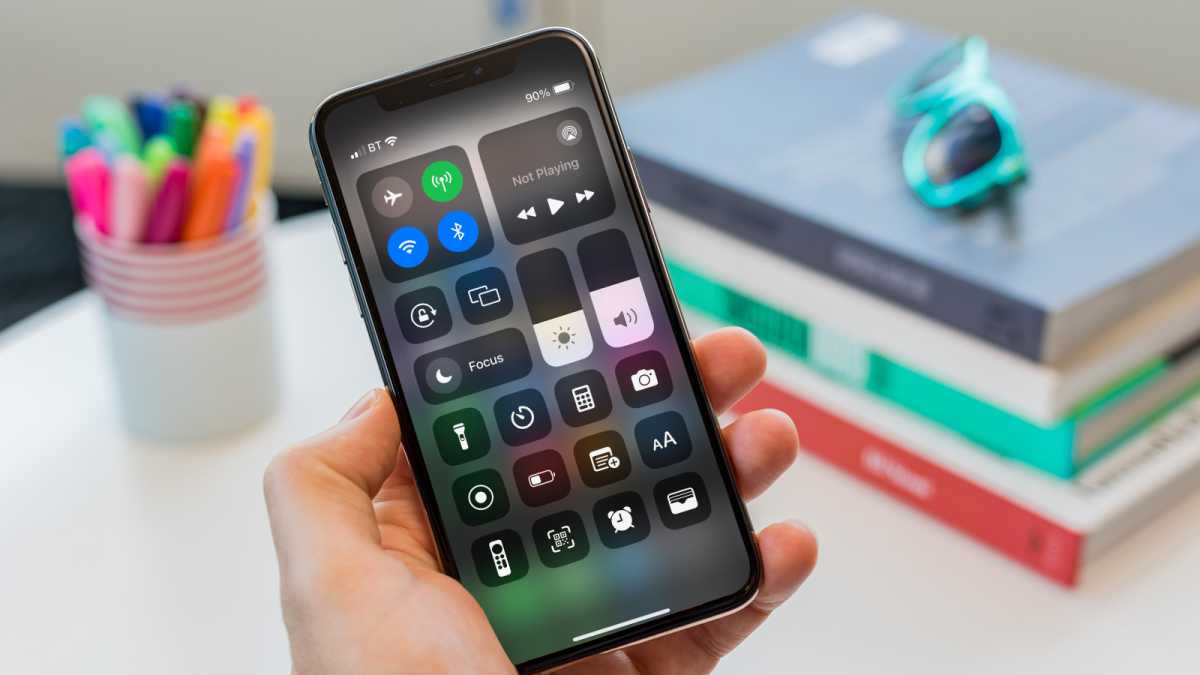
Flight mode on iOS

Flight mode on iOS

Martyn Casserly

Flight mode on iOS

Martyn Casserly

Martyn Casserly

Try restarting your iPhone

Another simple fix is to simply power down your iPhone for a few seconds, then restart it to see if that clears the issue.

Update to the latest version of iOS

If you still have a Wi-Fi signal, you can try checking to see if there’s an iOS update available, as this could solve any existing problems. To see how this is done, read how to update iOS on an iPhone on Macworld. 
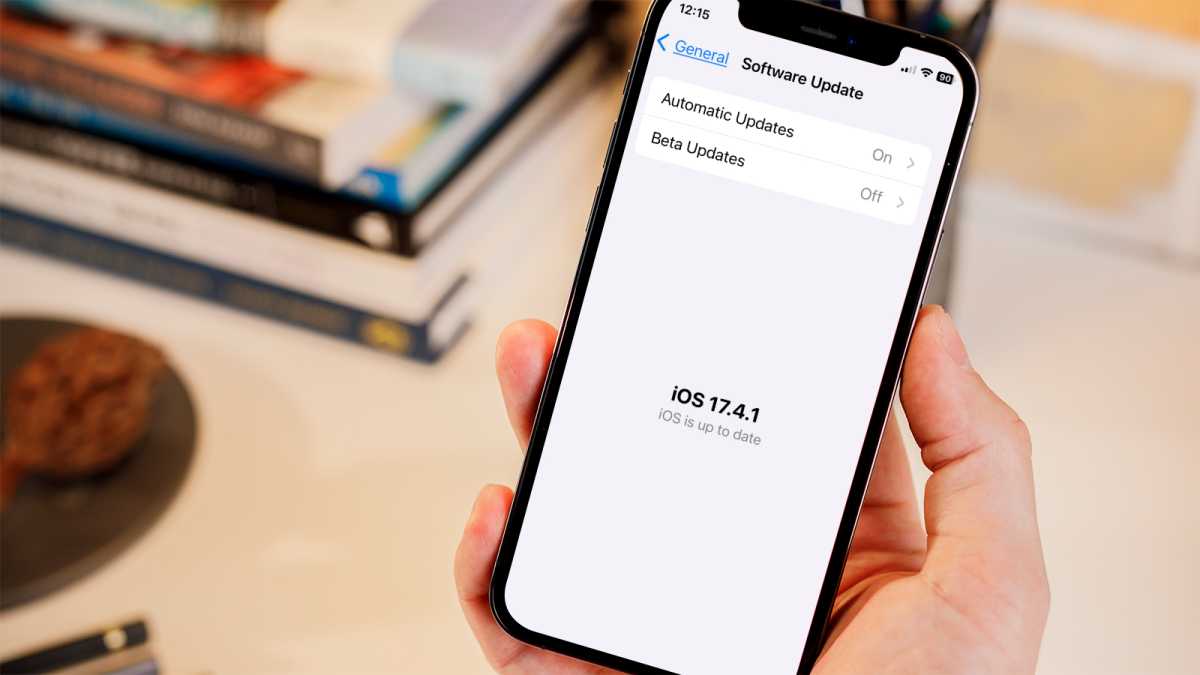
Why is my iPhone in SOS mode iOS Update page

Why is my iPhone in SOS mode iOS Update page

Martyn Casserly

Why is my iPhone in SOS mode iOS Update page

Martyn Casserly

Martyn Casserly

Enable Data Roaming if you’re abroad

Should you be travelling abroad, it could be that data roaming hasn’t been enabled on your iPhone, which would restrict its ability to connect to a network. To check this, go to Settings > Cellular (or Cellular Data), then enable Cellular Data. After this, select Cellular Data Options and turn on Data Roaming.

Cellular settings on iPhone

Cellular settings on iPhone

Martyn Casserly

Cellular settings on iPhone

Martyn Casserly

Martyn Casserly

If you have a dual SIM setup, then select the relevant number and enable Data Roaming for that one. 

(Note: In the UK, Apple uses Mobile Services rather than Cellular, although the SOS mode isn’t currently available in this region.) 

Contact your network provider

Should none of the above work, then it’s worth borrowing a friend’s phone and calling your network provider to see if there’s any kind of issue with your account or its service. 

Visit the Apple Store

If you’ve had no luck with any of the solutions, it could be that your iPhone is encountering a technical problem. In this case, we’d recommend Macworld’s article on booking an appointment at the Genius bar of your local Apple store. Hopefully they’ll get you back up and running in no time. 

You Might Also Like

Manna, Neurent, Sisterly among EY Entrepreneur of the Year finalists

Sonos Play Review: Performance Meets Convenience

Intel repurchasing 49pc stake in Leixlip chip factory for $14.2bn

Why the iPhone Fold and iPhone 18 Pro Could Launch Together

Microsoft releases foundational AI models targeting enterprises

TAGGED: cool tech, latest technology, latest technology news, new technology, science and technology, tech, Tech News, tech review, technews, technological advances, technology definition, technology reviews, what is technology
Share This Article
Facebook Twitter Copy Link
Previous Article Married TV Anchor In US Resigns After Sexting Man Posing As A 15-Year-Old Girl
Next Article Dora Factory Announces Historic $DORA Airdrop to Over 1 Million ATOM Stakers in Largest MACI Voting Round Ever
Leave a comment

Leave a Reply Cancel reply

Your email address will not be published. Required fields are marked *

- Advertisement -
Ad image

Latest News

The Mass Effect TV Show Will Reportedly Be Rewritten To Appeal To ‘Non-Gamers’
Gaming News
HDFC Bank Q4 business update: Lender reports 15% YoY growth in deposits, advances jump 12%
Business
Jimmy Song explains why Bitcoin needs a 'conservative' node client
Crypto
Manna, Neurent, Sisterly among EY Entrepreneur of the Year finalists
Tech News
Over 1.6 million Ukrainians returned home to frontline areas despite Russian attacks, report shows
World News
Bitcoin Falls To ‘Bottom Discovery’ Zone — What Does This Mean?
Crypto
Jamie Lynn Spears Then & Now: Photos of the Actress Over the Years
Celebrity

About Us

Welcome to Viraltrendingcontent, your go-to source for the latest updates on world news, politics, sports, celebrity, tech, travel, gaming, crypto news, and business news. We are dedicated to providing you with accurate, timely, and engaging content from around the globe.

Quick Links

  • Home
  • World News
  • Politics
  • Celebrity
  • Business
  • Home
  • World News
  • Politics
  • Sports
  • Celebrity
  • Business
  • Crypto
  • Gaming News
  • Tech News
  • Travel
  • Sports
  • Crypto
  • Tech News
  • Gaming News
  • Travel

Trending News

cageside seats

Unlocking the Ultimate WWE Experience: Cageside Seats News 2024

The Mass Effect TV Show Will Reportedly Be Rewritten To Appeal To ‘Non-Gamers’

Investing £5 a day could help me build a second income of £329 a month!

cageside seats
Unlocking the Ultimate WWE Experience: Cageside Seats News 2024
May 22, 2024
The Mass Effect TV Show Will Reportedly Be Rewritten To Appeal To ‘Non-Gamers’
April 4, 2026
Investing £5 a day could help me build a second income of £329 a month!
March 27, 2024
Brussels unveils plans for a European Degree but struggles to explain why
March 27, 2024
© 2024 All Rights reserved | Powered by Vraltrendingcontent
  • About Us
  • Contact US
  • Disclaimer
  • Privacy Policy
  • Terms of Service
Welcome Back!

Sign in to your account

Lost your password?