
By using this site, you agree to the Privacy Policy and Terms of Use.
Accept
Viral Trending contentViral Trending content
  • Home
  • World News
  • Politics
  • Sports
  • Celebrity
  • Business
  • Crypto
  • Gaming News
  • Tech News
  • Travel
Reading: How to Close Tabs on Android
Notification Show More
Viral Trending contentViral Trending content
  • Home
  • Categories
    • World News
    • Politics
    • Sports
    • Celebrity
    • Business
    • Crypto
    • Tech News
    • Gaming News
    • Travel
  • Bookmarks
© 2024 All Rights reserved | Powered by Viraltrendingcontent
Viral Trending content > Blog > Tech News > How to Close Tabs on Android
Tech News

How to Close Tabs on Android

By Viral Trending Content 4 Min Read
Share
SHARE

Everyone sometimes finds themselves browsing far too many pages at once. Unfortunately, this can put a significant strain on your phone. 

Contents
How to close tabs on Chrome How to close tabs on Firefox How to close tabs on Samsung Browser How to close tabs on Opera How to close tabs on Edge 

That’s why managing open tabs on your Android phone or tablet is crucial for keeping your browser organised and improving performance. 

Here’s a step-by-step guide on how to close tabs across various popular browsers on Android. 

How to close tabs on Chrome 

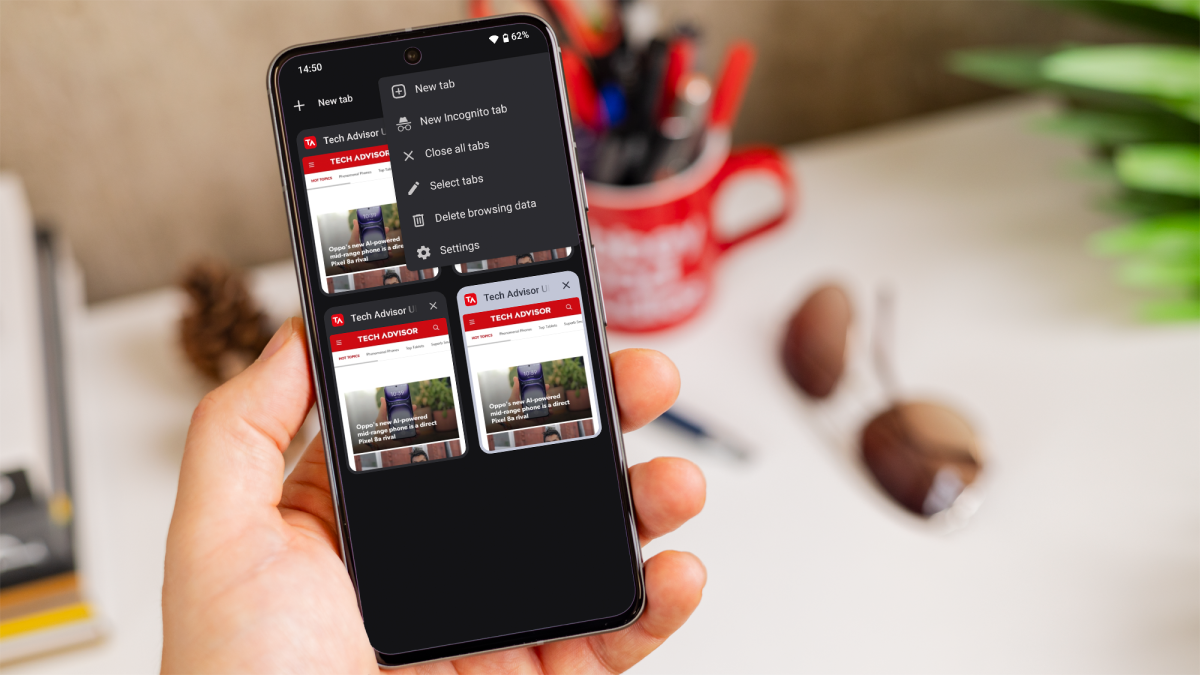
Google Chrome is one of the most popular browsers on Android. Closing tabs in Chrome is straightforward: 

  1. Launch the Chrome browser on your Android device. 
  2. Tap the square icon with the number (or smiley emoticon, if you’ve got more than 100 tabs open) next to the address bar to view all open tabs. 
  3. Swipe left or right on the tab you want to close or tap the ‘X’ in the upper right corner of the tab preview. 
  4. Tap the three-dot menu icon in the top right corner, then select ‘Close all tabs’ to do so. 
How to close tabs on Android

How to close tabs on Android

Dominik Tomaszewski / Foundry

How to close tabs on Android

Dominik Tomaszewski / Foundry

Dominik Tomaszewski / Foundry

    How to close tabs on Firefox 

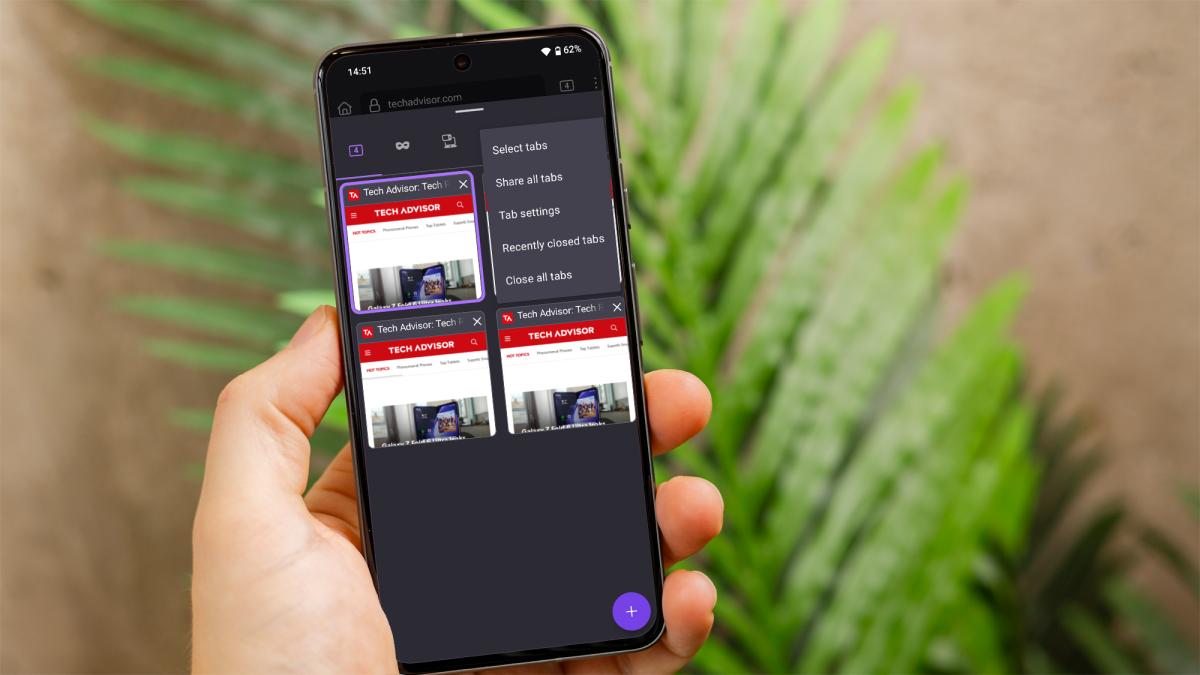
    Firefox offers an easy way to manage and close tabs on Android: 

    1. Launch the Firefox app on your Android device. 
    2. Tap the number next to the address bar to open the tabs overview. 
    3. Swipe the tab left or right, or tap the ‘X’ on the tab you wish to close. 
    4. Tap the three-dot menu icon in the top right corner, then select ‘Close all tabs’. 
    How to close tabs on Android

    How to close tabs on Android

    Dominik Tomaszewski / Foundry

    How to close tabs on Android

    Dominik Tomaszewski / Foundry

    Dominik Tomaszewski / Foundry

      How to close tabs on Samsung Browser 

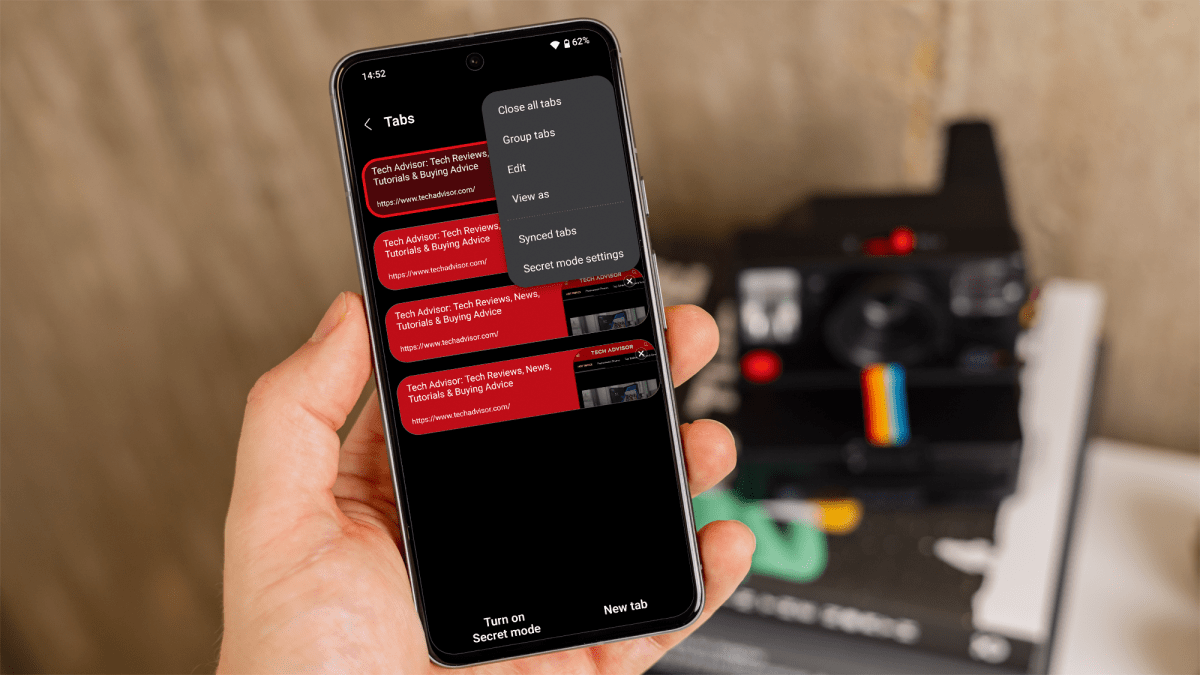
      The Samsung Internet Browser is a common choice for Samsung Galaxy users. Here’s how to manage tabs: 

      1. Launch the Samsung Internet app. 
      2. Tap the tabs icon (two overlapping squares) in the bottom-right corner. 
      3. Swipe left or right on a tab or tap the ‘X’ on the tab thumbnail to close it. 
      4. Tap the three-dot menu in the top right corner and select ‘Close all tabs’ to do so. 
      How to close tabs on Android

      How to close tabs on Android

      Dominik Tomaszewski / Foundry

      How to close tabs on Android

      Dominik Tomaszewski / Foundry

      Dominik Tomaszewski / Foundry

        How to close tabs on Opera 

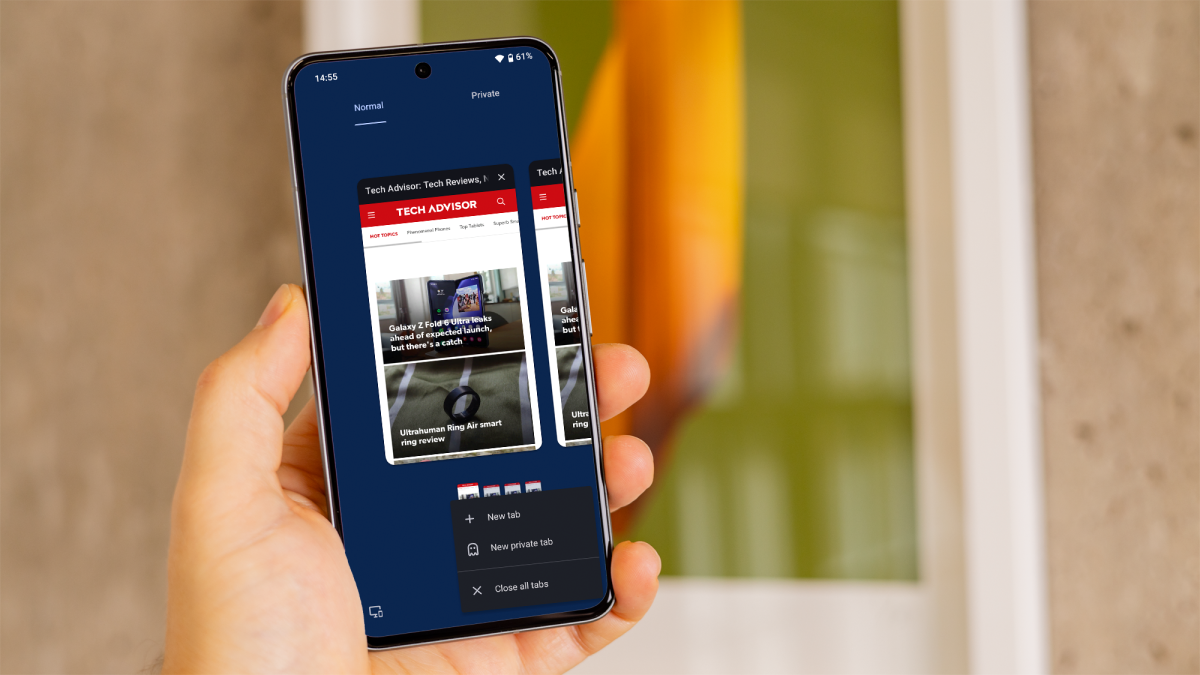
        Opera is known for its speed and efficiency. Here’s how to close tabs in Opera: 

        1. Launch the Opera browser on your Android device. 
        2. Tap the tab icon (square or number) at the bottom of the screen. 
        3. Swipe the tab up or tap the ‘X’ on the tab to close it. 
        4. Tap the three vertical dots in the bottom right corner and select ‘Close all tabs’ to do so. 
        How to close tabs on Android

        How to close tabs on Android

        Dominik Tomaszewski / Foundry

        How to close tabs on Android

        Dominik Tomaszewski / Foundry

        Dominik Tomaszewski / Foundry

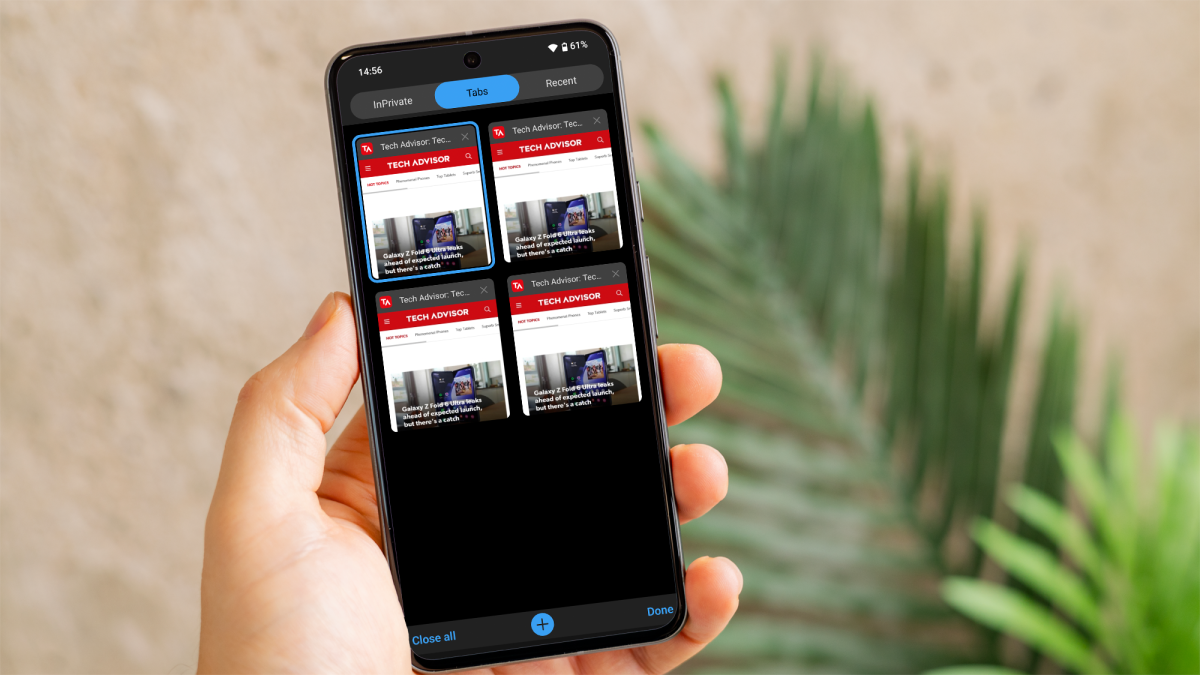
        How to close tabs on Edge 

        Microsoft Edge is a feature-rich browser available on Android. Here’s how to manage your tabs: 

        1. Launch the Microsoft Edge app. 
        2. Tap the square icon with a number next to the address bar. 
        3. Swipe the tab left or right, or tap the ‘X’ on the tab preview to close it. 
        4. Click on ‘Close all tabs’ at the bottom- left of the screen to close them all at once. 
        How to close tabs on Android

        How to close tabs on Android

        Dominik Tomaszewski / Foundry

        How to close tabs on Android

        Dominik Tomaszewski / Foundry

        Dominik Tomaszewski / Foundry

        By following these steps, you can efficiently manage and close tabs in various browsers on your Android phone or tablet, ensuring a smoother and more organised browsing experience. 

        You Might Also Like

        Apple AI Pin Specs Leak: Dual Cameras, No Screen & More

        The diverse responsibilities of a principal software engineer

        OpenAI Backs Bill That Would Limit Liability for AI-Enabled Mass Deaths or Financial Disasters

        Google’s Fitbit Tease has me More Excited for Garmin’s Whoop Rival

        Why the TCL NXTPAPER 14 Is One of the Best Tablets for Musicians and Sheet Music Reading

        TAGGED: cool tech, latest technology, latest technology news, new technology, science and technology, tech, Tech News, tech review, technews, technological advances, technology definition, technology reviews, what is technology
        Share This Article
        Facebook Twitter Copy Link
        Previous Article Iranian reformist Pezeshkian wins presidential run-off election
        Next Article Metaphor: ReFantazio Showcase Reveals Two New Companions and Their Archetypes
        Leave a comment

        Leave a Reply Cancel reply

        Your email address will not be published. Required fields are marked *

        - Advertisement -
        Ad image

        Latest News

        JPMorgan CEO Jamie Dimon says he’s ‘learned and relearned’ to not make big decisions when he’s tired on Fridays
        Business
        Apple AI Pin Specs Leak: Dual Cameras, No Screen & More
        Tech News
        A ‘glass-like’ battlefield: German Army chief on the future of warfare
        World News
        Polymarket Sees Record $153M Daily Volume After Chainlink Integration
        Crypto
        Natasha Lyonne Then & Now: See Before & After Photos of the Actress Here
        Celebrity
        Cult Hit Doki Doki Literature Club Fights Removal From Google Play Store Over ‘Depiction Of Sensitive Themes’
        Gaming News
        Dead as Disco Launches Into Early Access on May 5th, Groovy New Gameplay Released
        Gaming News

        About Us

        Welcome to Viraltrendingcontent, your go-to source for the latest updates on world news, politics, sports, celebrity, tech, travel, gaming, crypto news, and business news. We are dedicated to providing you with accurate, timely, and engaging content from around the globe.

        Quick Links

        • Home
        • World News
        • Politics
        • Celebrity
        • Business
        • Home
        • World News
        • Politics
        • Sports
        • Celebrity
        • Business
        • Crypto
        • Gaming News
        • Tech News
        • Travel
        • Sports
        • Crypto
        • Tech News
        • Gaming News
        • Travel

        Trending News

        cageside seats

        Unlocking the Ultimate WWE Experience: Cageside Seats News 2024

        Investing £5 a day could help me build a second income of £329 a month!

        JPMorgan CEO Jamie Dimon says he’s ‘learned and relearned’ to not make big decisions when he’s tired on Fridays

        cageside seats
        Unlocking the Ultimate WWE Experience: Cageside Seats News 2024
        May 22, 2024
        Investing £5 a day could help me build a second income of £329 a month!
        March 27, 2024
        JPMorgan CEO Jamie Dimon says he’s ‘learned and relearned’ to not make big decisions when he’s tired on Fridays
        April 10, 2026
        Brussels unveils plans for a European Degree but struggles to explain why
        March 27, 2024
        © 2024 All Rights reserved | Powered by Vraltrendingcontent
        • About Us
        • Contact US
        • Disclaimer
        • Privacy Policy
        • Terms of Service
        Welcome Back!

        Sign in to your account

        Lost your password?