




These days, most Android devices will come with at least 128GB of internal storage.
However, over time, even the most advanced smartphones can become sluggish due to the accumulation of all sorts of files.
You’ve probably already freed up storage space on Android by removing every app you don’t use, installing a Micro-SD card (if you have a dual-SIM phone), clearing out your Downloads folder or deleting unnecessary photos and videos.
So, what else can you do without factory resetting your phone or buying a new Android handset?

As it turns out, the solution to this problem may be much simpler than you think. Clearing the cache on your Android phone is a simple yet effective way to free up space and potentially improve performance.
What are cache files?
Firstly, it’s important to understand what cache actually is. In simple terms, cache refers to temporary files and data stored by apps and the Android system to speed up performance.
While cache files can improve the speed and efficiency of certain tasks, they can also accumulate over time and take up valuable space on your device.
How to clear cache on an Android phone
Below you will find the steps that should apply to most Android phones running on Android 14.
Although the process should look the same, remember that the names and placement of the features and sections may vary depending on the brand and system version of your phone. With that in mind, we’ve included separate methods for Samsung and Google phones below.
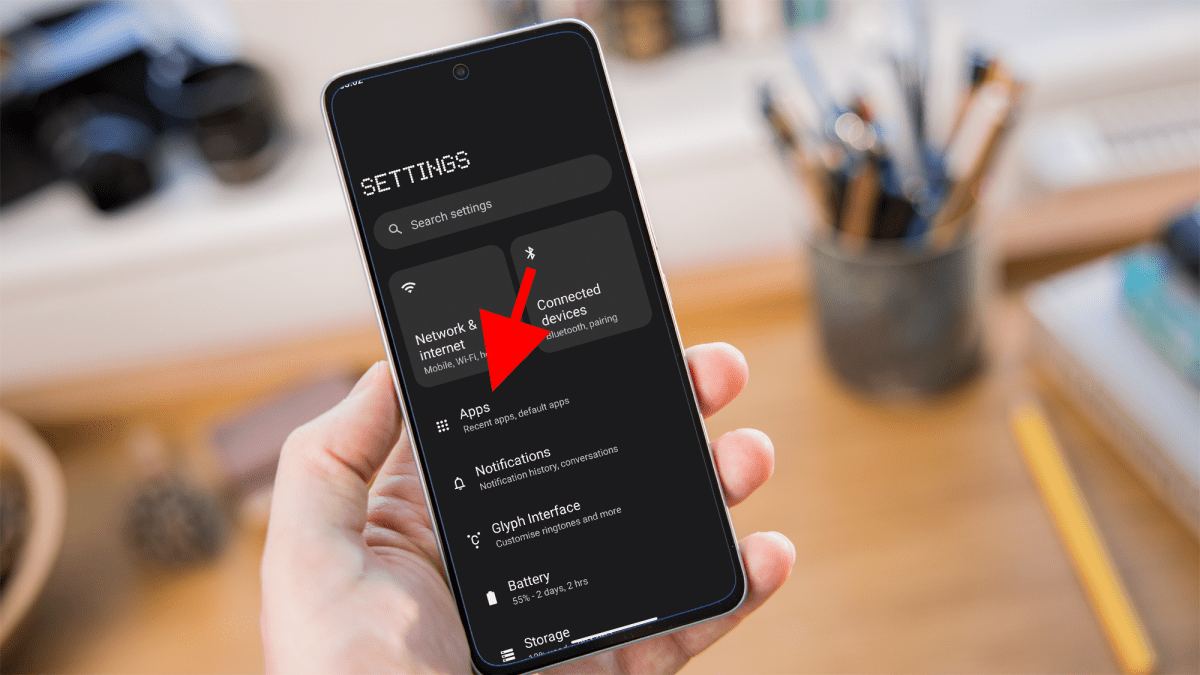
Identify app with cached data
Dominik Tomaszewski / Foundry
To do this, navigate to your device’s Settings menu and select ‘Apps’ or ‘Applications’.
Here, you’ll see a list of all the apps installed on your device, along with the amount of storage space they’re using.
Tap on individual apps to see detailed information, including the amount of cached data each app has stored.
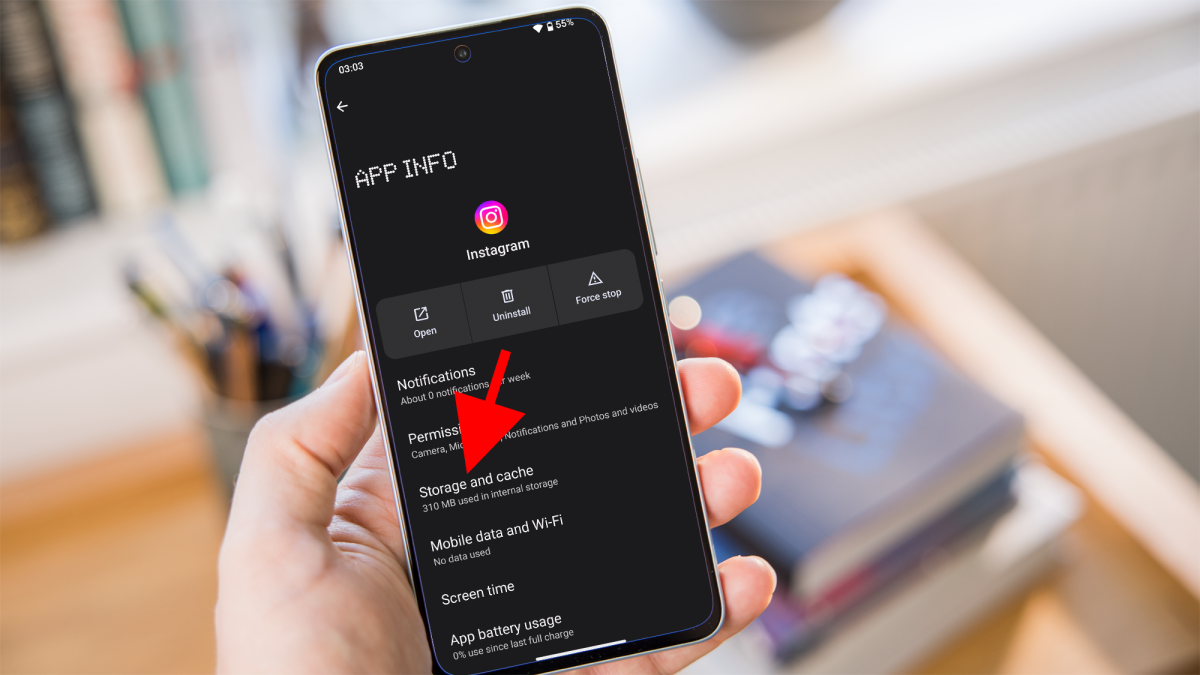
Go to app’s storage settings
Dominik Tomaszewski / Foundry
To do this, simply select the app from the list in the Settings menu and tap on the ‘Storage’, ‘Storage and cache’ or similar named option.
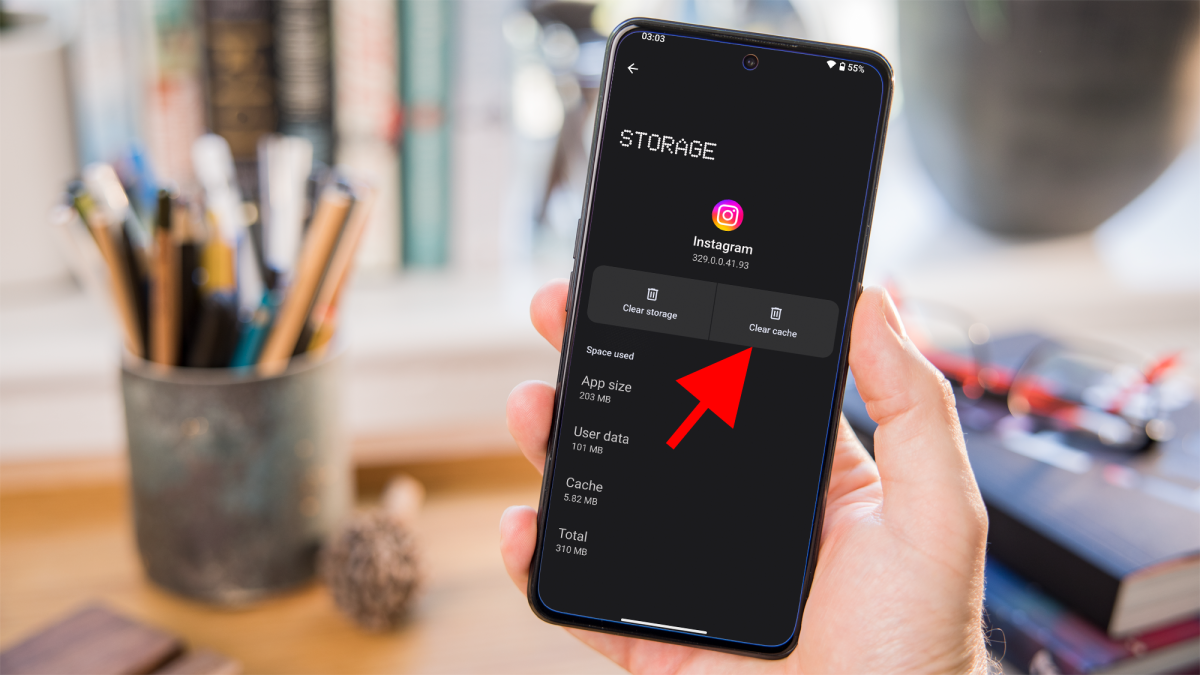
Clear cached data
Dominik Tomaszewski / Foundry
From here, you’ll see an option to ‘Clear cache’ Tap on this option to delete the cached data associated with the app.
Keep in mind that clearing an app’s cache will not delete any personal data or settings within the app itself.
How to clear cache on a Samsung phone
Samsung’s Galaxy phones run on the Android operating system but have their own user interface called One UI. Clearing the cache on a Samsung phone is straightforward:
- Open the Settings app on your Samsung phone. You can usually find it in the app drawer or by swiping down from the top of the screen and tapping the gear icon
- Look for the ‘Device Care’ option within the Settings menu. It may be labelled as ‘Device Maintenance’ on some Samsung devices
- Within this section, tap on the ‘Storage’ option. This will show you a breakdown of your device’s storage usage
- Tap on the ‘Clean Now’ or ‘Optimise Now’ button to initiate a clean-up process. This will clear the cache and other unnecessary files from your device, helping to improve performance
- If you want to clear the cache for specific apps, you can do so by going to Settings > Apps > App Name > Storage > Clear Cache

Dominik Tomaszewski / Foundry
Dominik Tomaszewski / Foundry
Dominik Tomaszewski / Foundry
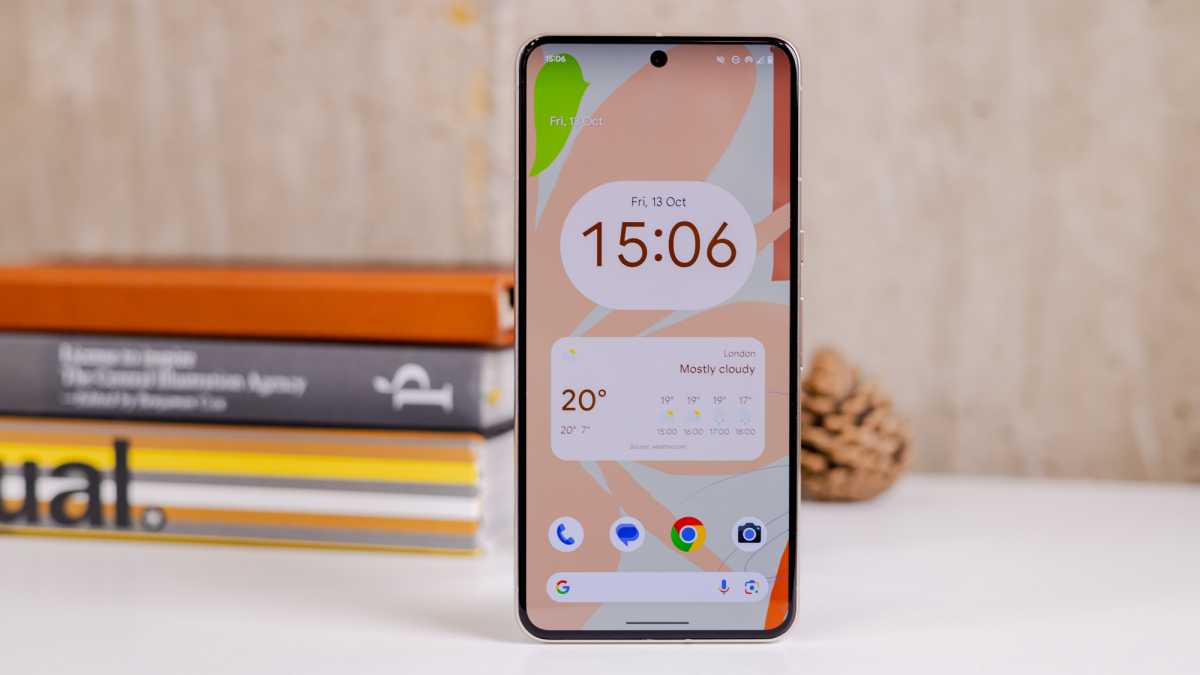
How to clear cache on a Google phone
Google’s Pixel phones offer a stock Android experience, which means the process of clearing the cache is consistent across all devices:
- Open the Settings app on your Google Pixel phone.
- Scroll down and select the ‘Storage’ option
- You’ll see an option labelled “Cached Data.” Tap on it to proceed
- A confirmation dialog box will appear, asking if you want to clear cached data. Confirm by tapping ‘OK’
- If you prefer to clear the cache for specific apps, you can do so by going to Settings > Apps > App Name > Storage > Clear Cache
Dominik Tomaszewski / Foundry
Dominik Tomaszewski / Foundry
Dominik Tomaszewski / Foundry
Clearing the cache on your Android phone should be a regular part of your maintenance routine to keep your device running smoothly. Aim to clear the cache every few weeks or whenever you notice a significant decrease in performance or available storage space.
If you prefer a more automated approach to clearing cache, you can also consider using cache-cleaning apps available on the Google Play Store. These apps are designed to scan your device for unnecessary cache files and other temporary data, allowing you to remove them with a single tap.


