By using this site, you agree to the Privacy Policy and Terms of Use.
Accept
Viral Trending contentViral Trending content
  • Home
  • World News
  • Politics
  • Sports
  • Celebrity
  • Business
  • Crypto
  • Gaming News
  • Tech News
  • Travel
Reading: How To Cancel Amazon Prime: Web & App Methods
Notification Show More
Viral Trending contentViral Trending content
  • Home
  • Categories
    • World News
    • Politics
    • Sports
    • Celebrity
    • Business
    • Crypto
    • Tech News
    • Gaming News
    • Travel
  • Bookmarks
© 2024 All Rights reserved | Powered by Viraltrendingcontent
Viral Trending content > Blog > Tech News > How To Cancel Amazon Prime: Web & App Methods
Tech News

How To Cancel Amazon Prime: Web & App Methods

By Viral Trending Content 6 Min Read
Share
SHARE

When it comes to value for money, Amazon Prime is up there with the very best.

Contents
How to cancel Amazon Prime via the appHow to cancel Amazon Prime via the websiteHow to check if you’re subscribed to Amazon PrimeHow to get an Amazon Prime refundRelated articles

While prices have increased in recent years, you still get loads of benefits for just £8.99/$14.99 per month or £95/$139 per year.

These include free next-day (or even same-day) delivery on loads of items, access to the Prime Video streaming service, over 100 million songs via Amazon Music Prime and much more.

Another big one is the exclusive access to certain deals, which is particularly important right now. Amazon Prime Day takes place on 16 and 17 July this year, and you’ll need to be a Prime member to access most of the offers.

If you’ve never signed up before, you can get a 30-day free trial and avoid being charged any extra. However, to avoid further charges, you’ll need to cancel your membership before the trial ends.

Equally, if you’ve had Prime for a while and have had enough of it, it may also be the right time to cancel. Don’t worry, your benefits won’t be taken away until you’re due to be charged.

How to cancel Amazon Prime via the app

On mobile devices, it’s easiest to cancel via the Amazon Shopping app. It’s free for iOS and Android – we’ll be using the latter for the purposes of this tutorial.

Sign in to your account if you haven’t used the app before, then follow these steps:

  1. Tap hamburger menu (three horizontal lines) at the bottom right
  2. Tap ‘Prime’, then ‘Prime’ again
  3. Tap the down arrow next to the Prime logo at the top, then ‘Manage my membership’
  4. Tap ‘Manage membership’ at the top of the screen, then ‘Update, cancel and more’
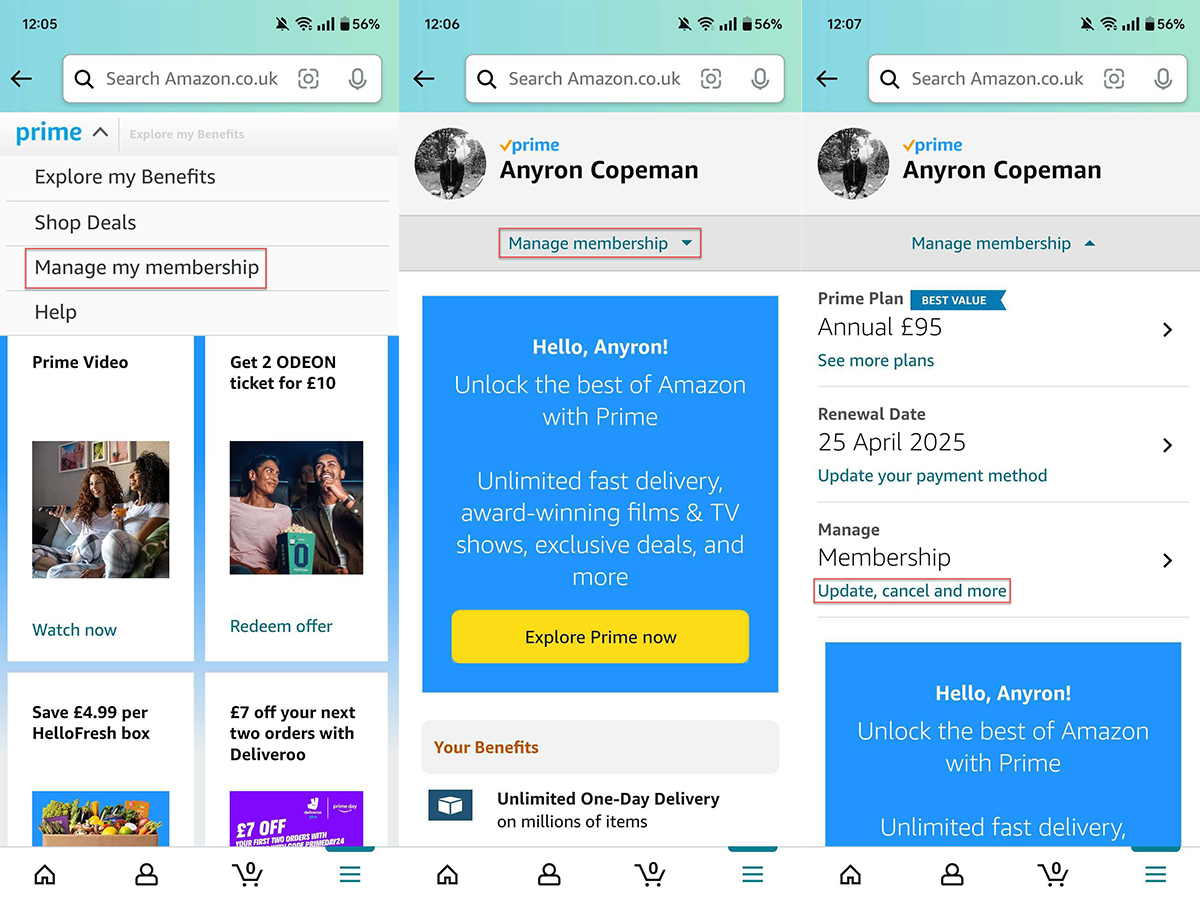
Cancel Amazon Prime screenshots

Cancel Amazon Prime screenshots

Anyron Copeman / Foundry

Cancel Amazon Prime screenshots

Anyron Copeman / Foundry

Anyron Copeman / Foundry

  1. Tap ‘End membership’
  2. Scroll to the bottom of the page, then tap ‘Continue to cancel’
  3. Tap the yellow ‘End on [date]’ button to confirm
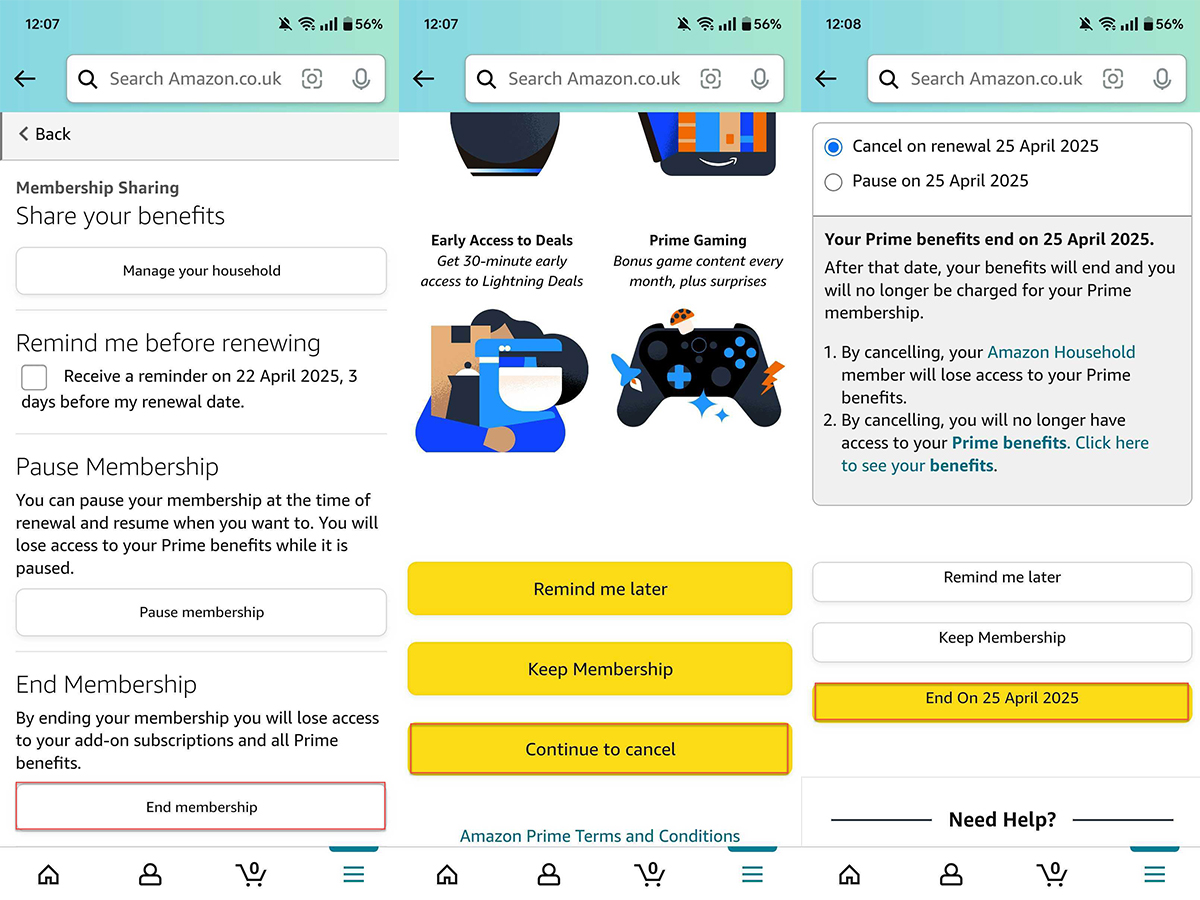
Cancel Amazon Prime screenshots

Cancel Amazon Prime screenshots

Anyron Copeman / Foundry

Cancel Amazon Prime screenshots

Anyron Copeman / Foundry

Anyron Copeman / Foundry

As mentioned in the screenshot above, your Prime benefits will still be available until the end of your subscription or trial.

Of course, you can also use the web browser on your mobile device to cancel Prime, but it’ll look similar to the desktop method.

How to cancel Amazon Prime via the website

On desktop, you’ll need to cancel via the website. The method is consistent across all web browsers and devices:

  1. Open a web browser and head to the Amazon website in your country (such as the UK or US)
  2. Sign in to your account if you haven’t done so already
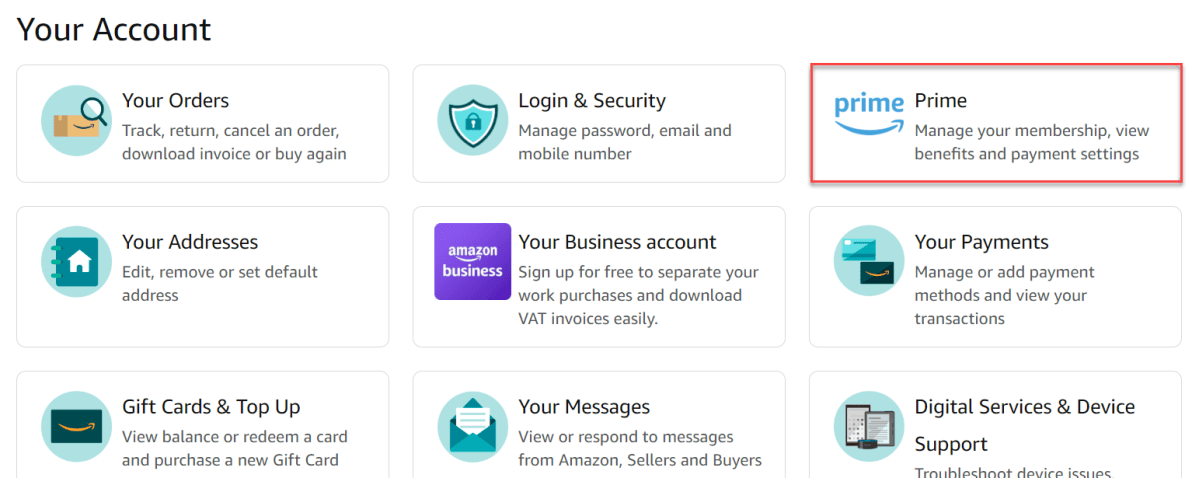
  3. Hover over ‘Account & Lists’, then click ‘Your Account’
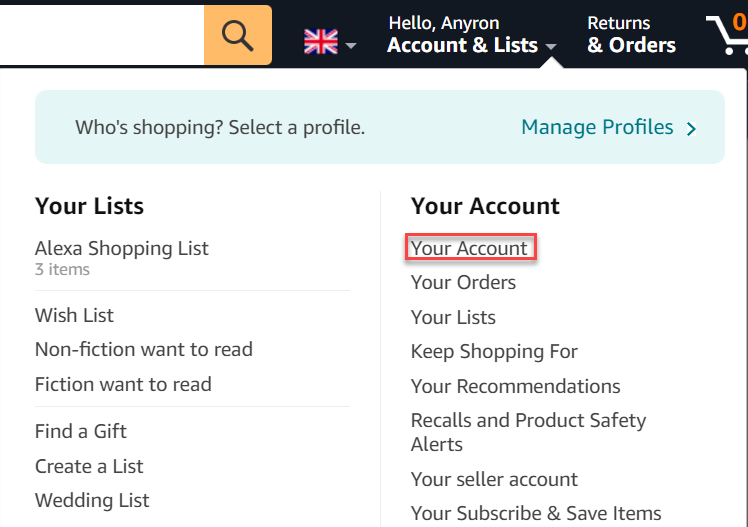
Cancel Amazon Prime screenshots

Cancel Amazon Prime screenshots

Anyron Copeman / Foundry

Cancel Amazon Prime screenshots

Anyron Copeman / Foundry

Anyron Copeman / Foundry

  1. Click the ‘Prime’ button
Cancel Amazon Prime screenshots

Cancel Amazon Prime screenshots

Anyron Copeman / Foundry

Cancel Amazon Prime screenshots

Anyron Copeman / Foundry

Anyron Copeman / Foundry

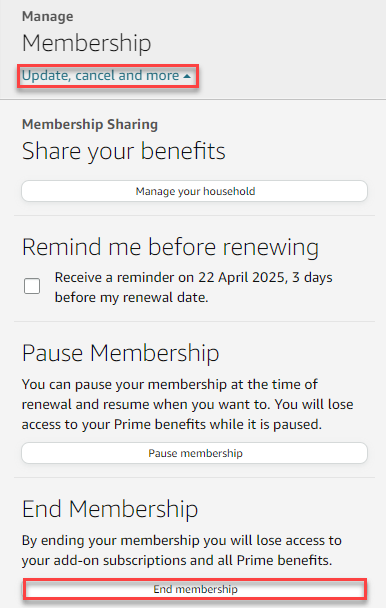
  1. Under the ‘Manage Membership’ heading, click ‘Update, cancel and more’
  2. Under ‘End Membership’, click the ‘End membership’ button
Cancel Amazon Prime screenshots

Cancel Amazon Prime screenshots

Anyron Copeman / Foundry

Cancel Amazon Prime screenshots

Anyron Copeman / Foundry

Anyron Copeman / Foundry

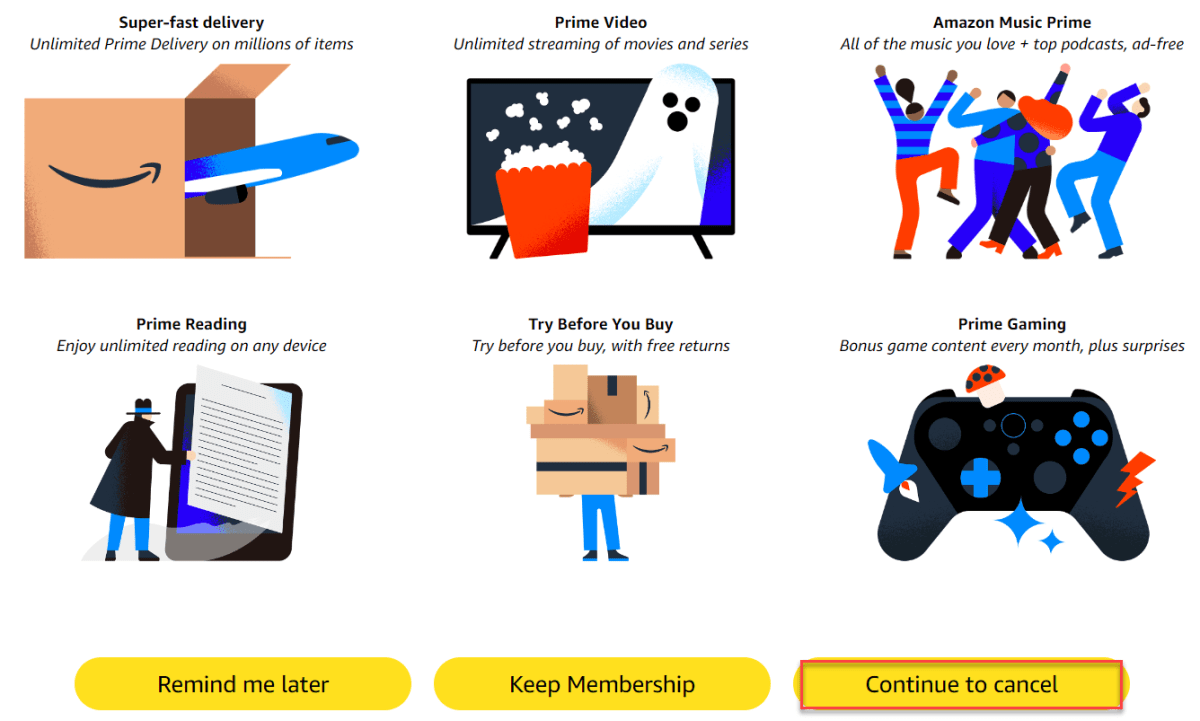
  1. From the bottom of the next screen, click ‘Continue to cancel’
Cancel Amazon Prime screenshots

Cancel Amazon Prime screenshots

Anyron Copeman / Foundry

Cancel Amazon Prime screenshots

Anyron Copeman / Foundry

Anyron Copeman / Foundry

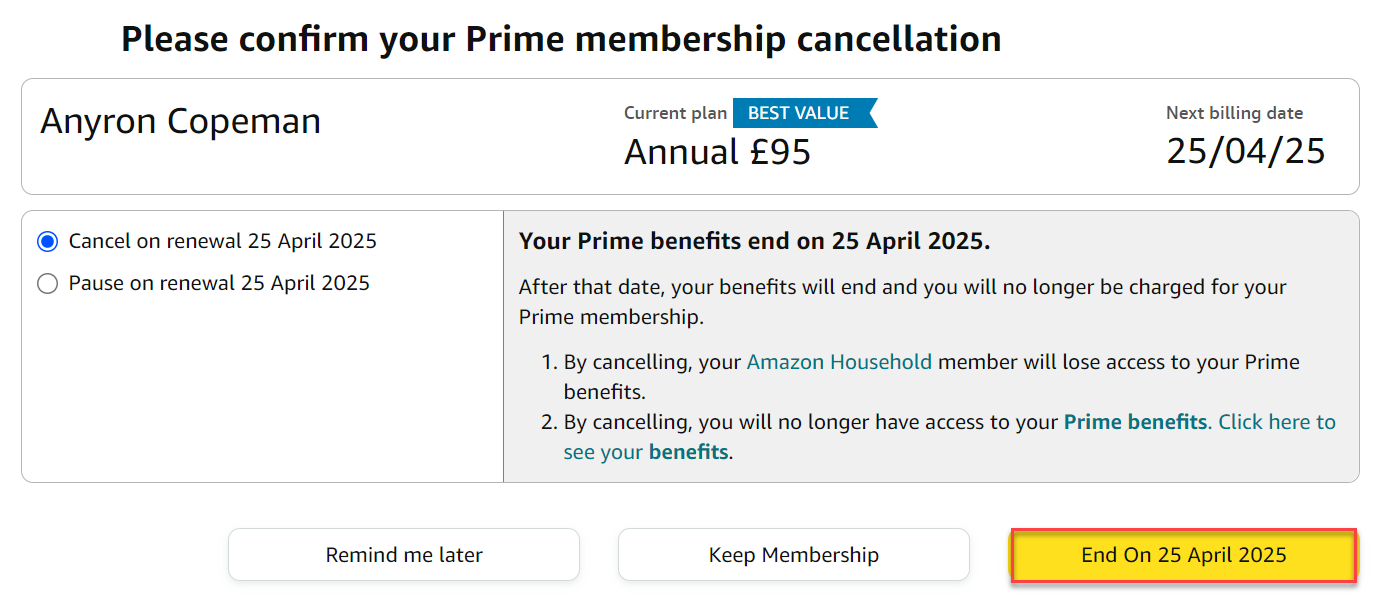
  1. From the next screen, click ‘End on [date] to confirm’
Cancel Amazon Prime screenshots

Cancel Amazon Prime screenshots

Anyron Copeman / Foundry

Cancel Amazon Prime screenshots

Anyron Copeman / Foundry

Anyron Copeman / Foundry

If you’ve paid for Prime but have not used any of its benefits, you can request a refund.

How to check if you’re subscribed to Amazon Prime

You might think you’re not signed up for Prime, but it might have slipped under your radar. Plenty of unwitting Amazon Prime customers have complained they had no idea they were signed up and had already been charged.

First, check your credit card or bank statements to see if Amazon has charged you £95/$139 for the annual Prime membership, or £8.99/$14.99 per month (if you signed up for the monthly plan).

You can also find out via the Amazon website. Head to the Prime hub page (Amazon UK/Amazon US).

If you see a summary of your membership and management options at the top of the screen, you have a subscription. But you just see the benefits or free trial advertised, you aren’t.

When you sign up for Amazon Prime, your membership is set to automatically renew each year. You can turn off this automatic renewal at any time – even during a free trial period.

How to get an Amazon Prime refund

Paid members who haven’t placed an Amazon Prime order are eligible for a full refund. When you cancel a paid Prime membership, you may automatically receive a refund.

You can also apply for a refund by visiting the Amazon customer service page (UK/US) and making a request via phone, email or online chat.

Related articles

You Might Also Like

Apple AI Pin Specs Leak: Dual Cameras, No Screen & More

The diverse responsibilities of a principal software engineer

OpenAI Backs Bill That Would Limit Liability for AI-Enabled Mass Deaths or Financial Disasters

Google’s Fitbit Tease has me More Excited for Garmin’s Whoop Rival

Why the TCL NXTPAPER 14 Is One of the Best Tablets for Musicians and Sheet Music Reading

TAGGED: cool tech, latest technology, latest technology news, new technology, science and technology, tech, Tech News, tech review, technews, technological advances, technology definition, technology reviews, what is technology
Share This Article
Facebook Twitter Copy Link
Previous Article Ukraine to get Patriots and F-16s as NATO announces long-term support
Next Article 7 rail stocks delivered up to 28% returns last week. Do you own any?
Leave a comment

Leave a Reply Cancel reply

Your email address will not be published. Required fields are marked *

- Advertisement -
Ad image

Latest News

JPMorgan CEO Jamie Dimon says he’s ‘learned and relearned’ to not make big decisions when he’s tired on Fridays
Business
Apple AI Pin Specs Leak: Dual Cameras, No Screen & More
Tech News
A ‘glass-like’ battlefield: German Army chief on the future of warfare
World News
Polymarket Sees Record $153M Daily Volume After Chainlink Integration
Crypto
Natasha Lyonne Then & Now: See Before & After Photos of the Actress Here
Celebrity
Cult Hit Doki Doki Literature Club Fights Removal From Google Play Store Over ‘Depiction Of Sensitive Themes’
Gaming News
Dead as Disco Launches Into Early Access on May 5th, Groovy New Gameplay Released
Gaming News

About Us

Welcome to Viraltrendingcontent, your go-to source for the latest updates on world news, politics, sports, celebrity, tech, travel, gaming, crypto news, and business news. We are dedicated to providing you with accurate, timely, and engaging content from around the globe.

Quick Links

  • Home
  • World News
  • Politics
  • Celebrity
  • Business
  • Home
  • World News
  • Politics
  • Sports
  • Celebrity
  • Business
  • Crypto
  • Gaming News
  • Tech News
  • Travel
  • Sports
  • Crypto
  • Tech News
  • Gaming News
  • Travel

Trending News

cageside seats

Unlocking the Ultimate WWE Experience: Cageside Seats News 2024

Investing £5 a day could help me build a second income of £329 a month!

JPMorgan CEO Jamie Dimon says he’s ‘learned and relearned’ to not make big decisions when he’s tired on Fridays

cageside seats
Unlocking the Ultimate WWE Experience: Cageside Seats News 2024
May 22, 2024
Investing £5 a day could help me build a second income of £329 a month!
March 27, 2024
JPMorgan CEO Jamie Dimon says he’s ‘learned and relearned’ to not make big decisions when he’s tired on Fridays
April 10, 2026
Brussels unveils plans for a European Degree but struggles to explain why
March 27, 2024
© 2024 All Rights reserved | Powered by Vraltrendingcontent
  • About Us
  • Contact US
  • Disclaimer
  • Privacy Policy
  • Terms of Service
Welcome Back!

Sign in to your account

Lost your password?