




We test a lot of Android phones here at Tech Advisor. It’s a good way to see how phones compare in terms of raw power, as well as providing metrics for graphical performance, battery life and other areas. If you want to do the same thing at home, and see how your phone compares to others, we’ll explain how we do it.
The process is straightforward and uses mostly free apps.
Are benchmark test results useful?
One thing to consider before testing is that while benchmarks do provide useful information, they shouldn’t be the only way to gauge performance. While your phone may (or may not) score highly in synthetic benchmarks, the real test is how it performs for you day-to-day under real-world conditions.
Aside from bragging rights, benchmarking is simply an objective way to see how your phone compares against others in certain situations.

Apps you’ll need to benchmark an Android phone
To get a good picture of how your phone performs you’ll need a few apps to run the tests. These are the ones we use:
Geekbench 6 for Android
At the heart of your phone is a System on Chip or SoC. Unlike a PC where the CPU, GPU and other components are separate, phones generally use a single chip which combines everything into one.
There’s still a traditional CPU doing the main number-crunching. Like desktop PCs and laptops, a phone CPU is made up of a number cores. Many flagship Android phones these days have eight CPU cores, but you’ll find various configurations. To test CPU performance you’ll want to use Geekbench 6, as this can show the speed of single-core activity as well as multiple cores together. The multi-core result is the one we pay most attention to, because it’s the one that best reflects real-world app performance.
Download Geekbench on your phone, then follow the steps below.
Open Geekbench
Foundry
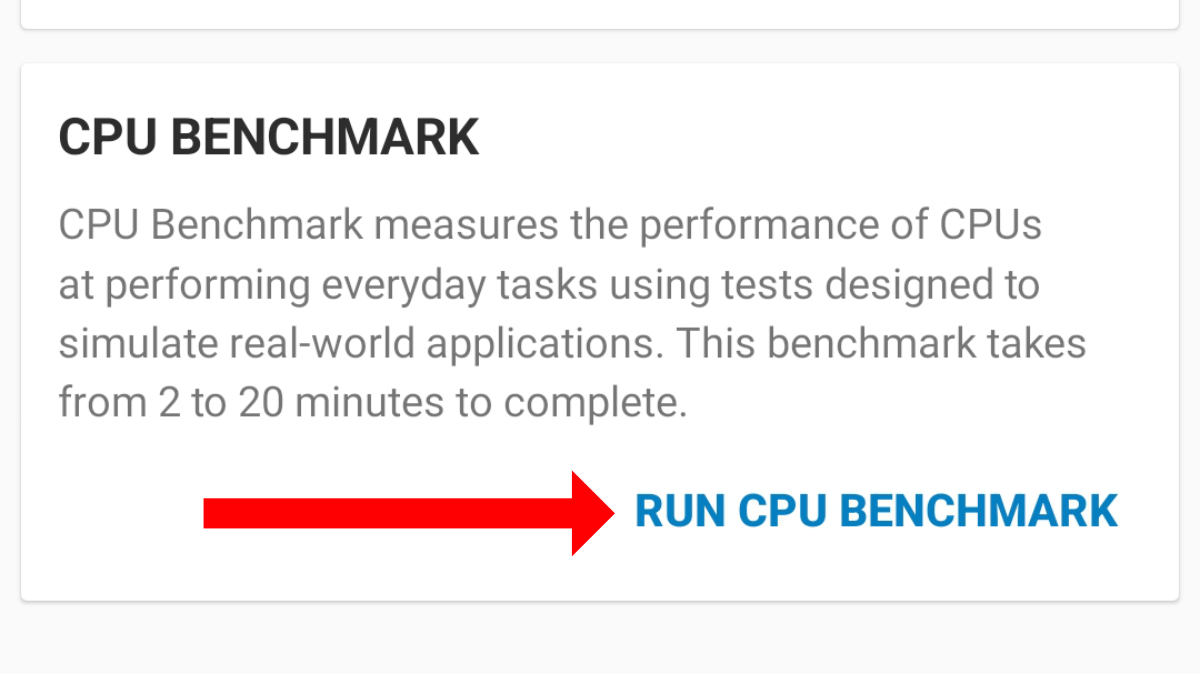
To begin the test you’ll need to tap the Run CPU Benchmark option at the bottom of the screen. Everything is automatic, but you’ll want to make sure your phone isn’t in a power-saving mode which could affect the results.
Check the results
Foundry
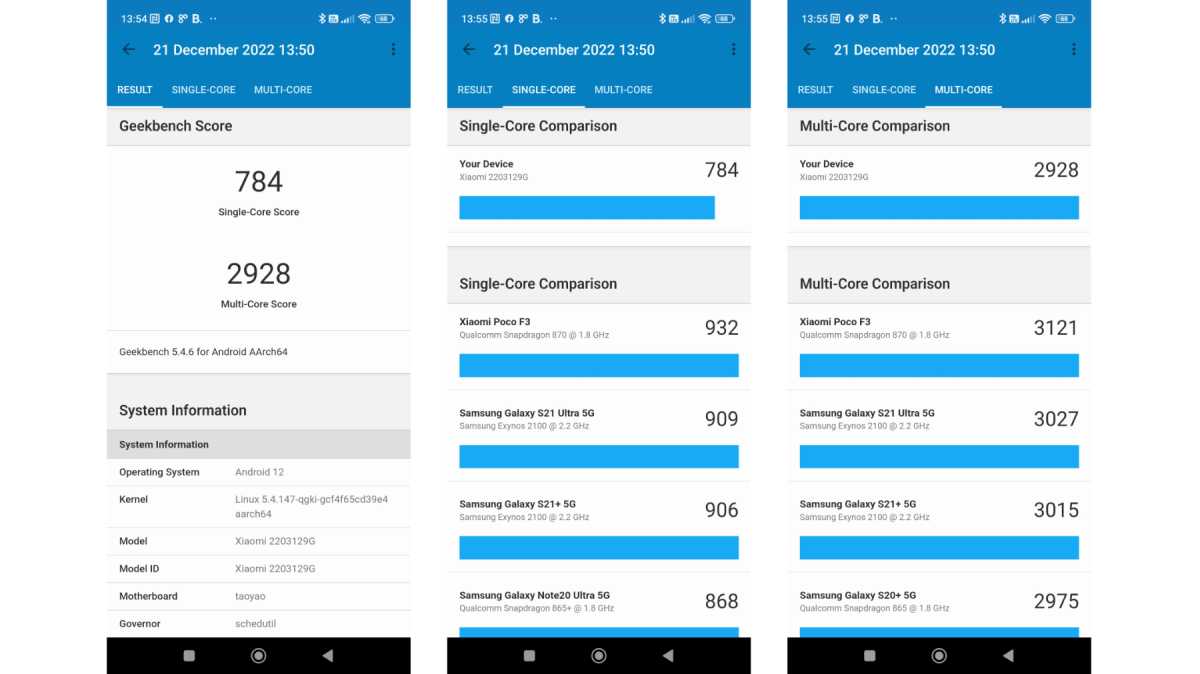
When the benchmark is complete, you’ll be presented with scores for Single and Multi-core performance. On the Result tab you can scroll down to see more details about how the phone performed in various sub-tests. Tapping the Single-Core or Multi-Core tabs then shows how your phone compares against other models that have been tested on Geekbench.
How to test the GPU performance of an Android phone
Alongside the CPU (Central Processing Unit) you’ll find the GPU (Graphics Processing Unit) which handles all the rendered images you see on your screen. Testing it is useful as it tells you how capable a phone is for playing games. To do it you’ll need to use GFXBench. So, download, install and launch the app, then follow these steps:
1. Select benchmark tests
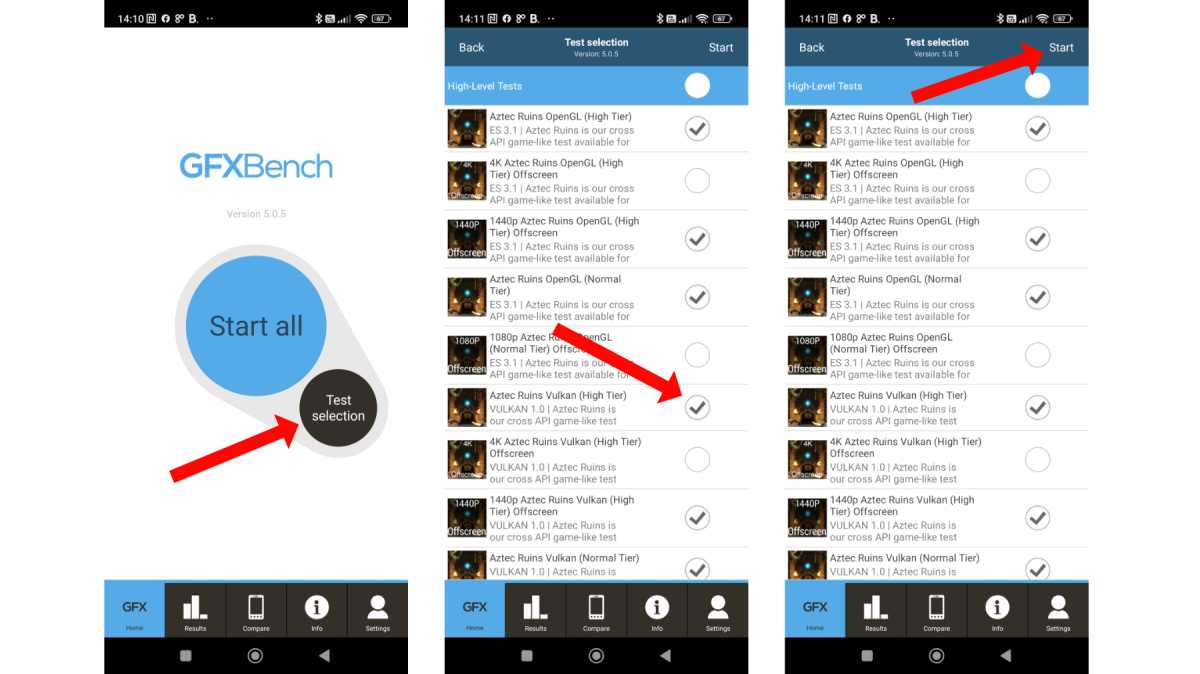
There are a wide range of tests, but you won’t need them all. When we test phones, we untick the offscreen versions of each test as these test the GPU without taking into account the resolution of your phone’s screen.
Tap the Test selection option then enable the tests you want to run. By default everything is ticked.
Foundry
These are the tests we run:
- GFX T-Rex
- GFX Manhattan
- GFX Manhattan 3.1
- GFX Car Chase
- GFX Aztec Ruins Vulkan Normal
- GFX Aztec Ruins Vulkan High
- GFX Aztec Ruins OpenGL Normal
- GFX Aztec Ruins OpenGL High
Make sure to set your phone to its highest refresh rate (usually found in the Display settings) if it has a screen that runs higher than 60Hz. Otherwise, you’ll find results are capped at 60 frames per second.
When you’ve selected the tests you want to use, tap the Start option in the top right corner to begin the test.
Leave the phone to complete the benchmarks as you won’t be able to do anything else while they are running.
2. Check the results
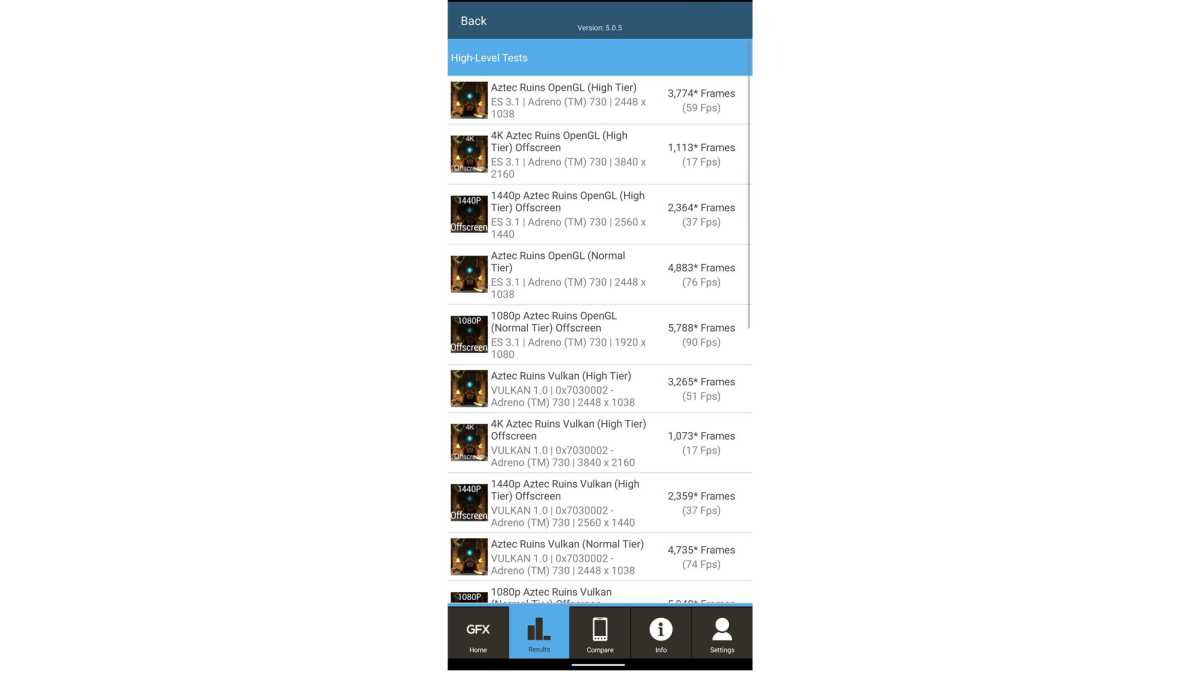
Once the tests have run, you’ll see the various scores shown next to their tests. If you want to see how this stands up to other devices, tap the Compare option at the bottom of the screen and you’ll see where the phone charts in relation to its rivals.
Anyron Copeman / Foundry
How to test battery life on an Android phone
Another essential element of any phone is battery life. Now, you can of course charge up your phone and then leave it playing a video on repeat until it dies, but that can be a bit arduous and also requires you to pay close attention so that you know when exactly the battery ran out.
A much simpler solution is to use the PCMark for Android app that runs a detailed battery monitoring benchmark.
Again, download and install the app from the Google Play store, then open it up to begin the test.
Running the benchmark
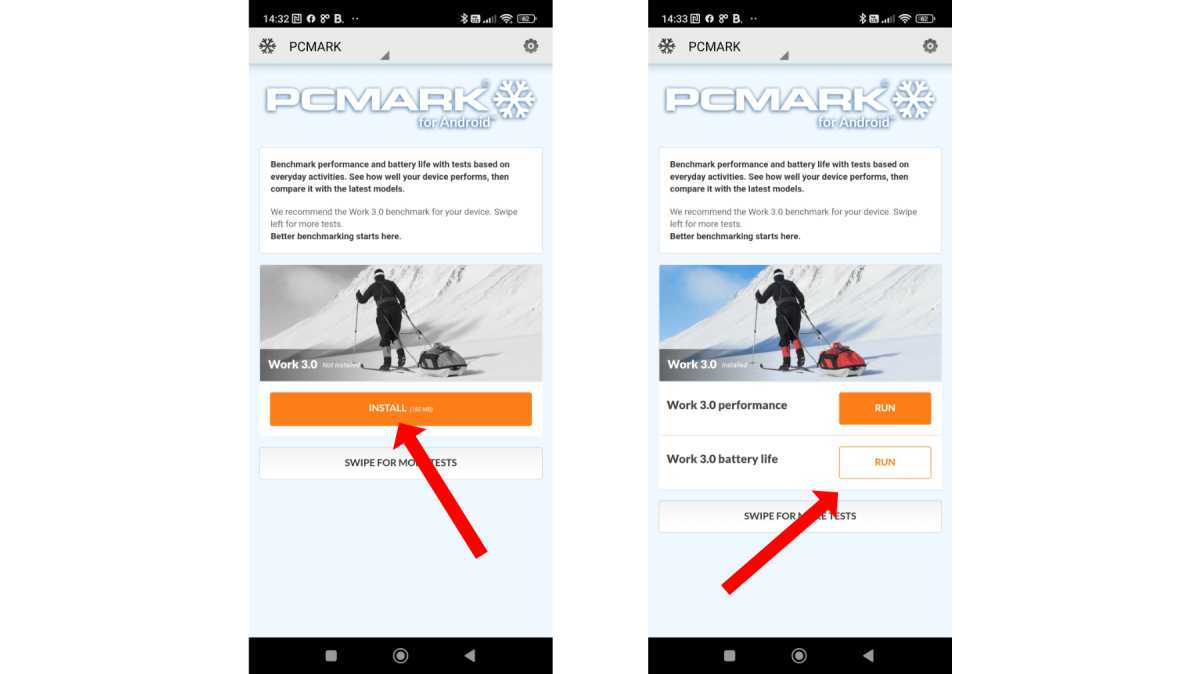
The benchmark you want is Work 3.0. This will need to be installed from within the app, so tap the Install button under the test. When this is done, tap the Run button next to Work 3.0 battery life.
Foundry
Note: Your battery will need to be charged to at least 80% before PCMark will let you run the test. We ensure phones are fully charged before running.
Once complete, plug in your phone and boot it up to check the test results.
Screen brightness does affect the results of any battery tests, and we use a colorimeter (a Datacolor Spyder) to set each screen as close to 200 nits as possible, and disable auto-brightness to ensure it remains at that setting for the duration of the test.
We assume you won’t have a colorimeter, but there are various apps that can turn your old phone into a makeshift light meter.
How to benchmark charging speeds on your Android phone
One last test worth doing, especially as the battery is now flat thanks to the PCMark for Android benchmark, is to see how long it takes to charge.
This test simply requires a timer. So, plug in your phone using the supplied charger and USB cable and set a 15-minute limit. When it rings, check the percentage, and then check it after a further 15 minutes. Many modern Android phones equipped with fast charging can reach 60-90% in half an hour, but it’s useful to know how quickly your battery recharges if you’re going out and need to give it a quick top-up for 15 minutes.
If, after running the various tests, you find that the results aren’t quite what you’d hoped for, then you can always use it as an excuse to upgrade to a new model. So, be sure to take a look at our current recommendations for the best Android phones as well as the best mid-range phones.


