
By using this site, you agree to the Privacy Policy and Terms of Use.
Accept
Viral Trending contentViral Trending content
  • Home
  • World News
  • Politics
  • Sports
  • Celebrity
  • Business
  • Crypto
  • Gaming News
  • Tech News
  • Travel
Reading: How to Get Deleted Photos Back on Android
Notification Show More
Viral Trending contentViral Trending content
  • Home
  • Categories
    • World News
    • Politics
    • Sports
    • Celebrity
    • Business
    • Crypto
    • Tech News
    • Gaming News
    • Travel
  • Bookmarks
© 2024 All Rights reserved | Powered by Viraltrendingcontent
Viral Trending content > Blog > Tech News > How to Get Deleted Photos Back on Android
Tech News

How to Get Deleted Photos Back on Android

By Viral Trending Content 3 Min Read
Share
SHARE

It’s easy to accidentally throw away photos and videos that you want to keep, but nowadays, this doesn’t have to be a big problem.

If you have chosen to activate your phone’s backup function, the photos are also stored in the cloud, allowing them to be accessed on any device. On most Android phones, this is done using the Google Photos app. What happens when you take a picture is that it is first saved on your phone and then copied to a Google server.

This is also possible on the iPhone, but you’ll have to download the Google Photos app first, then sign in and enable automatic backup.

By going to photos.google.com and logging in with the same username as on your phone (usually your Gmail address), you can then see your backed-up photos.

The prerequisite for the photos to remain is, of course, that you haven’t deleted them in the cloud, but even if you have, there may be a workaround. By default, photos that you delete in the Google Photos cloud service remain in the Recycle Bin for 60 days.

By tapping the Collections tab at the bottom, then Bin, you can see all your recently deleted files. Simply select each one and choose Restore to put it back into your main gallery.
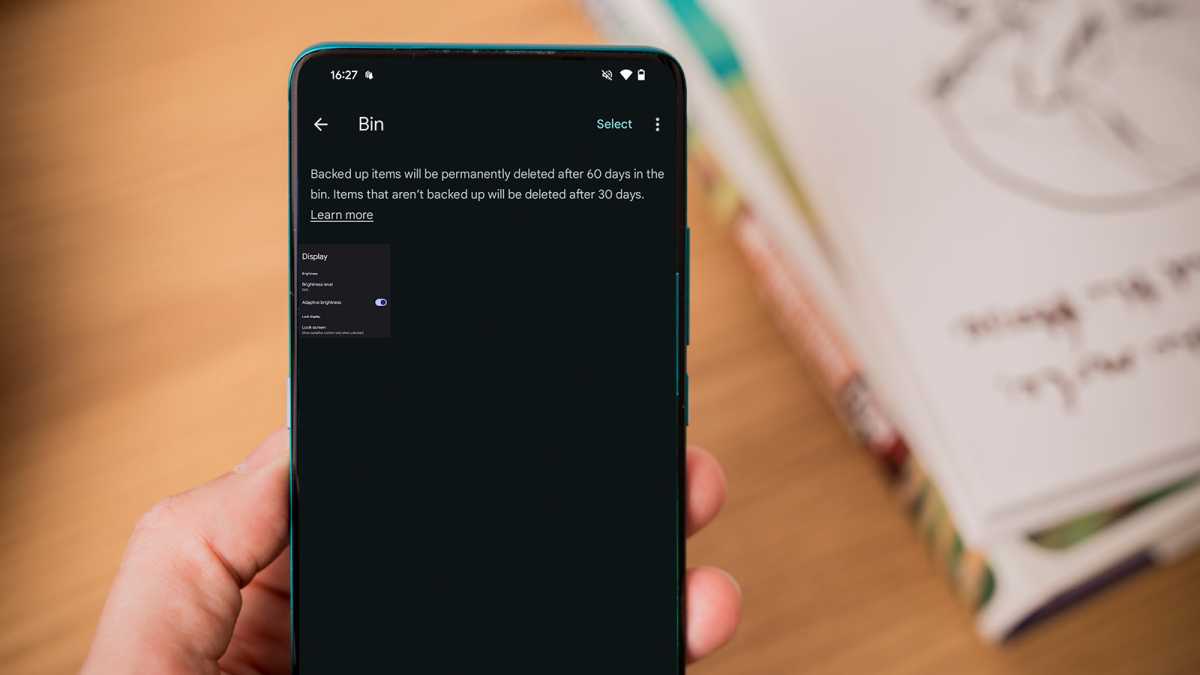
Google Photos bin

Google Photos bin

Anyron Copeman / Foundry

Google Photos bin

Anyron Copeman / Foundry

Anyron Copeman / Foundry

Not sure if the backup service is enabled? Open the Google Photos app on your phone and tap your profile picture in the top right corner. Then go to Photos settings and select Back up. Here you can switch the feature on or off and choose how it works.
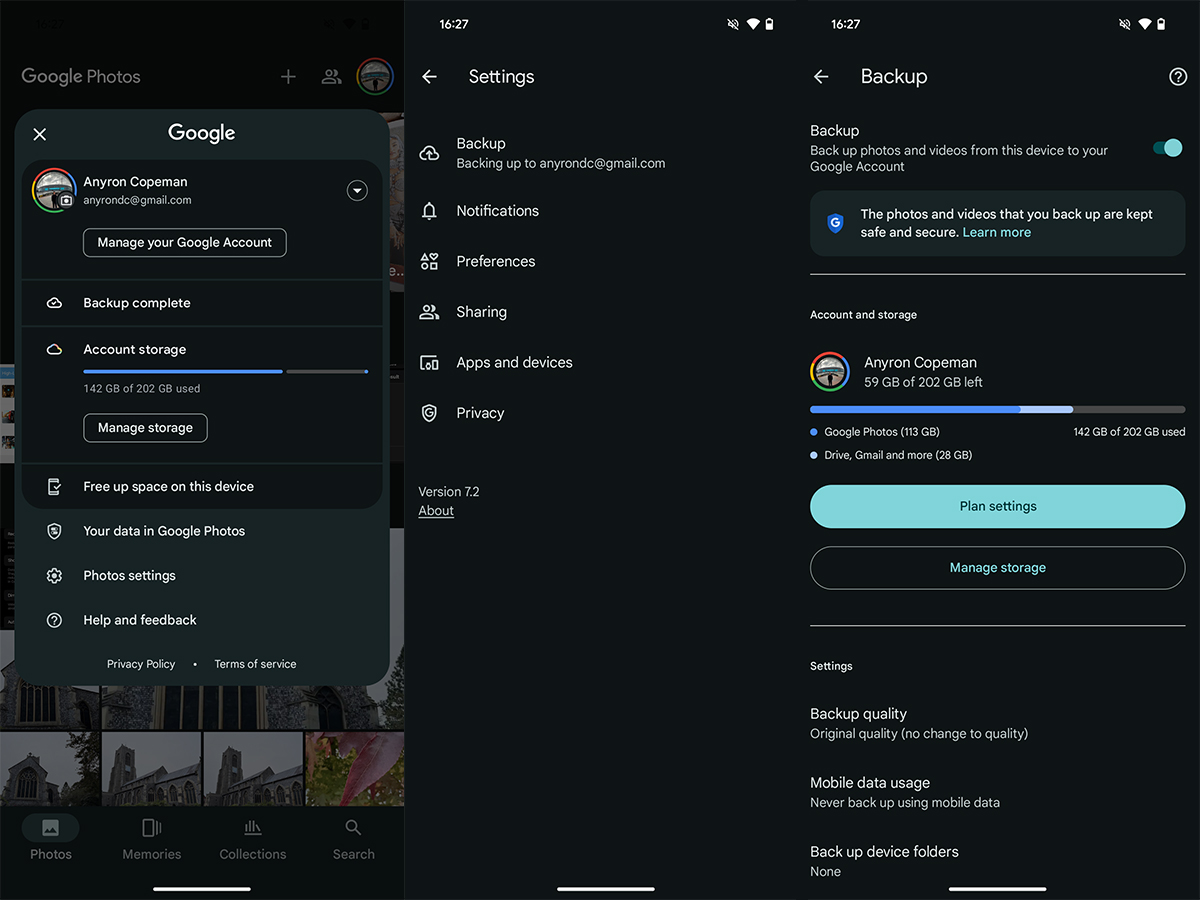
Google Photos Backup settings method

Google Photos Backup settings method

Anyron Copeman / Foundry

Google Photos Backup settings method

Anyron Copeman / Foundry

Anyron Copeman / Foundry

This is what it looks like if you’re running a phone with a clean version of Android. If you have a phone from another manufacturer, it may look a little different, but the basic setup is usually the same.

This article originally appeared on our sister publication PC för Alla and was translated and adapted from Swedish.

You Might Also Like

Apple AI Pin Specs Leak: Dual Cameras, No Screen & More

The diverse responsibilities of a principal software engineer

OpenAI Backs Bill That Would Limit Liability for AI-Enabled Mass Deaths or Financial Disasters

Google’s Fitbit Tease has me More Excited for Garmin’s Whoop Rival

Why the TCL NXTPAPER 14 Is One of the Best Tablets for Musicians and Sheet Music Reading

TAGGED: cool tech, latest technology, latest technology news, new technology, science and technology, tech, Tech News, tech review, technews, technological advances, technology definition, technology reviews, what is technology
Share This Article
Facebook Twitter Copy Link
Previous Article Israel’s War With Hezbollah Escalates After 18 Killed In Strikes On Lebanon
Next Article This special spot at Denver International Airport can be soothing for weary travelers
Leave a comment

Leave a Reply Cancel reply

Your email address will not be published. Required fields are marked *

- Advertisement -
Ad image

Latest News

JPMorgan CEO Jamie Dimon says he’s ‘learned and relearned’ to not make big decisions when he’s tired on Fridays
Business
Apple AI Pin Specs Leak: Dual Cameras, No Screen & More
Tech News
A ‘glass-like’ battlefield: German Army chief on the future of warfare
World News
Polymarket Sees Record $153M Daily Volume After Chainlink Integration
Crypto
Natasha Lyonne Then & Now: See Before & After Photos of the Actress Here
Celebrity
Cult Hit Doki Doki Literature Club Fights Removal From Google Play Store Over ‘Depiction Of Sensitive Themes’
Gaming News
Dead as Disco Launches Into Early Access on May 5th, Groovy New Gameplay Released
Gaming News

About Us

Welcome to Viraltrendingcontent, your go-to source for the latest updates on world news, politics, sports, celebrity, tech, travel, gaming, crypto news, and business news. We are dedicated to providing you with accurate, timely, and engaging content from around the globe.

Quick Links

  • Home
  • World News
  • Politics
  • Celebrity
  • Business
  • Home
  • World News
  • Politics
  • Sports
  • Celebrity
  • Business
  • Crypto
  • Gaming News
  • Tech News
  • Travel
  • Sports
  • Crypto
  • Tech News
  • Gaming News
  • Travel

Trending News

cageside seats

Unlocking the Ultimate WWE Experience: Cageside Seats News 2024

Investing £5 a day could help me build a second income of £329 a month!

JPMorgan CEO Jamie Dimon says he’s ‘learned and relearned’ to not make big decisions when he’s tired on Fridays

cageside seats
Unlocking the Ultimate WWE Experience: Cageside Seats News 2024
May 22, 2024
Investing £5 a day could help me build a second income of £329 a month!
March 27, 2024
JPMorgan CEO Jamie Dimon says he’s ‘learned and relearned’ to not make big decisions when he’s tired on Fridays
April 10, 2026
Brussels unveils plans for a European Degree but struggles to explain why
March 27, 2024
© 2024 All Rights reserved | Powered by Vraltrendingcontent
  • About Us
  • Contact US
  • Disclaimer
  • Privacy Policy
  • Terms of Service
Welcome Back!

Sign in to your account

Lost your password?