




Summary created by Smart Answers AI
In summary:
- Tech Advisor explores eight essential Google Gemini prompts that transform Android phones into productivity powerhouses through AI-powered customization and management features.
- Gemini enables users to create custom wallpapers, ringtones, and profile images while managing battery life, Do Not Disturb settings, and daily reminders effortlessly.
- The AI assistant integrates deeply with Android systems, offering real-time settings guidance and Google Maps navigation to streamline smartphone usage.
Google Gemini seems to be popping up all over the place. The ubiquitous chatbot can run in a browser or as an app on any smartphone. Want to make a quick travel itinerary or a grocery store list? Open Gemini.
If you have a new Android phone such as the Google Pixel 10 Pro, it’s likely installed by default. And it’s amazingly good at sharing tips and tricks, some of which will help you stay more productive.
For example, you can ask how to make the battery last as long as possible and which settings will help you focus on your work. Each tip below includes the exact prompt to use, along with why it can help you.

1. Create a custom ringtone
Prompt to use: “Create a ringtone that sounds like a mix of Fleetwood Mac and Nirvana.”
Gemini can now create music, which means you can go old school and ask the bot to create a ringtone. Note that you might have to select the Create Music option in Gemini settings – otherwise the bot might get confused and simply describe the song.
You can then ask Gemini to open the settings area where you can set the new ringtone (it even highlights the option). You’ll have to go to My Sounds and add the downloaded track, then save it as the new ringtone.

Foundry
How it makes you more productive: The main advantage? Your ringtone will be entirely unique, so you can tell it’s your phone and not the one belonging to the coworker sitting next to you. You can even create custom ringtones to use for specific contacts, all generated by AI.
2. Find a destination and start navigation
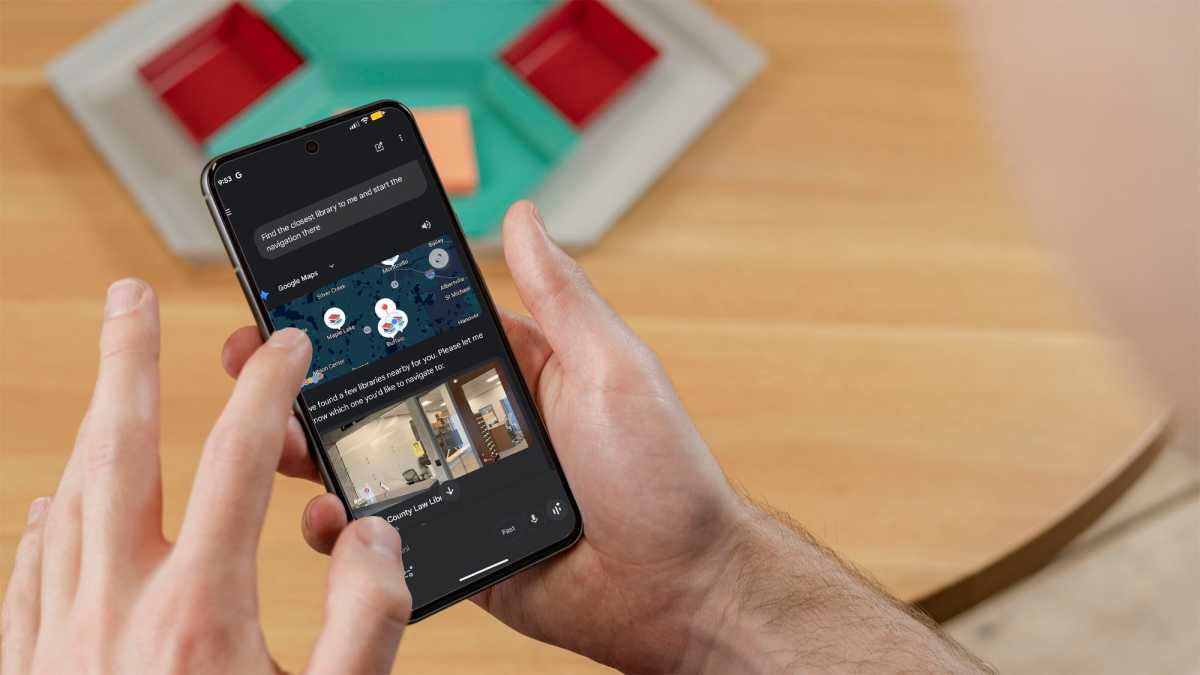
Prompt to use: “Find my closest library and open Google Maps to get there.”
Gemini does more than just offer tips and advice. The bot is highly integrated into Android, and one of the best examples relates to navigation. In the example prompt, you can ask Gemini to find the closest library in your area – the bot will show you the Google Maps destinations that are available, and you can click to start the navigation to get there.
Foundry
How it makes you more productive: Gemini is arguably a better navigational aid than Google Maps because you can engage in a discussion first. You might have a rough idea of where you want to go – such as a coffee shop – but you can ask Gemini for the best options first. Then, the bot can initiate the actual navigation by starting Google Maps and setting the route.
3. Use the “do not disturb” feature
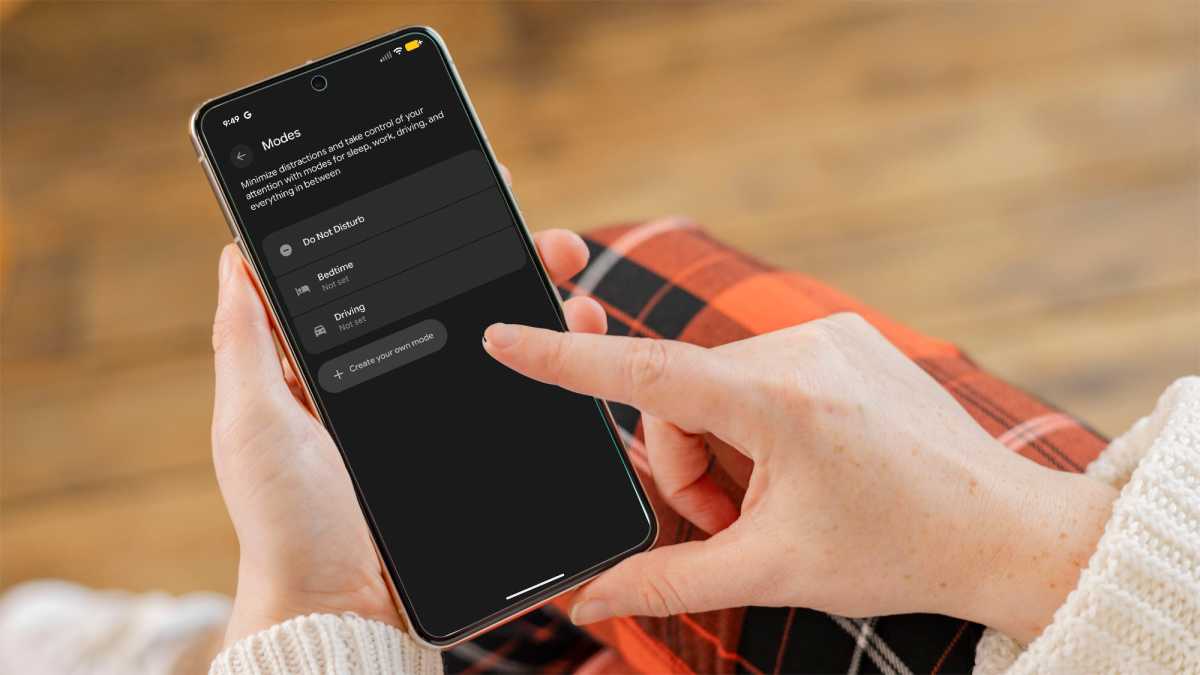
Prompt to use: “Enable do not disturb mode.”
Do not disturb is a major productivity enhancer. It disables notifications, apps, and other interruptions. Gemini can control settings for you, so if you type in the prompt above, the bot will open that particular screen and all you have to do is click the ‘do not disturb’ option.
Foundry
How it makes you more productive: Reaching for our phones is an impulse many of us find it hard to control. When you know everything is disabled, and you are not hearing constant dings, you can stay focused even when the allure is the greatest, for instance, when you have a new phone.
4. Make the battery last longer
Prompt to use: “Turn on battery saving mode.”
In the early phases of owning a new phone, you might not be in a rhythm when it comes to power management, when to charge, or knowing how long the battery will last. Gemini can remove some uncertainty and simply enable power saving mode for you.
How it makes you more productive: Gemini loves to give advice, and it’s usually accurate and helpful, but this prompt will help you keep your phone running longer without having to hunt for settings. Of course, Gemini can also give you tips about removing apps that will drain battery life (such as Facebook) and also where to find power management features.
5. Set up your daily reminders
Prompt to use: “Set a reminder at 5pm each day to do my shoulder routine.”
Let’s face it, setting reminders is a chore. On a new phone, you might need to set a morning alarm or set reminders related to work. In my case, I have a bad shoulder so I need to do a quick routine to stretch and exercise. The prompt quickly adds the new Google Task.
How it makes you more productive: This particular prompt is a productivity booster. You can engage in a chat with the bot to tweak reminders and even knock out a series of reminders all at once. For example, you can tell the bot you have meetings at 4pm and 10am each day and then explain more about the meetings so reminders are more detailed.
6. Create a new profile photo for your phone
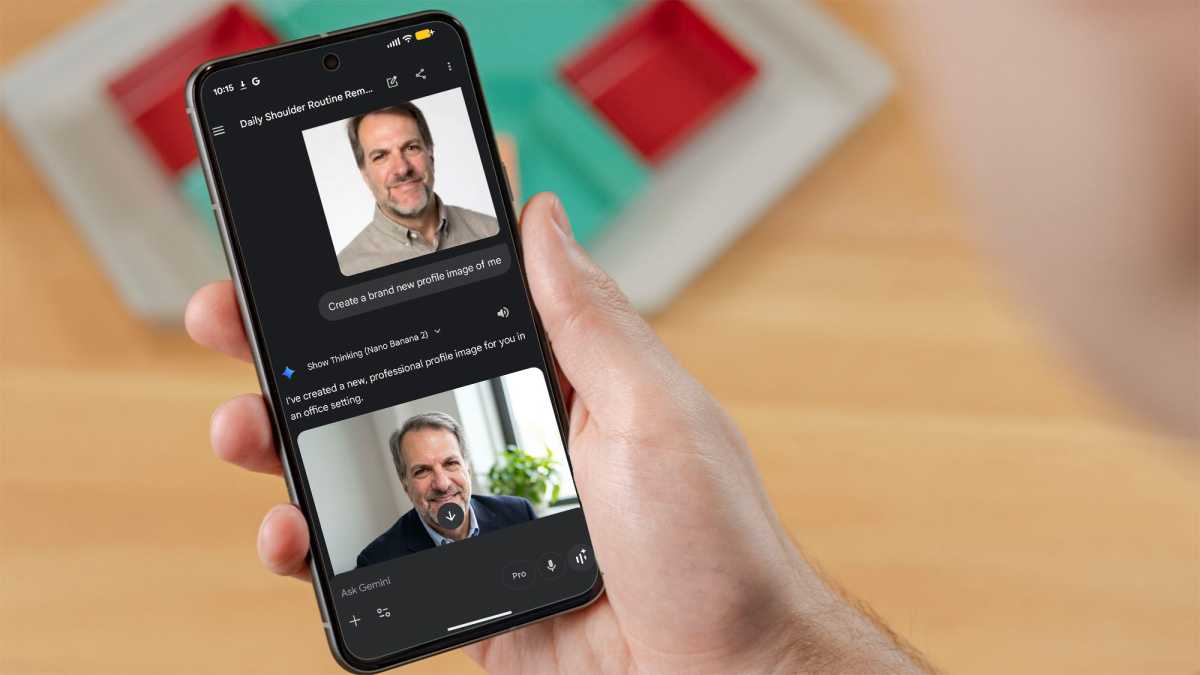
Prompt to use: “Create a brand new profile image of me.”
Here’s a cool prompt you can use to give your new phone a little extra personality. First, load an existing image of yourself, then ask Gemini to make a new profile image.
Oddly, Gemini can’t actually make it your profile image but will give you instructions on how to change that. (You need to go to settings and tap your current profile image, then swap it.)
Foundry
How it makes you more productive: This prompt makes it fast and easy to create a new image. It has the added benefit of making it obvious you have a new phone. When you make a new profile photo, especially for making phone calls, the new image pops up on the phone of the person you’re calling. It’s a cool way to announce to the world you have a new gadget.
7. Learn about new features in Live mode
Prompt to use: “Explain what the settings on my screen can do.”
I didn’t even know Gemini could do this until I tried it out. If you have a new phone, you might be learning how all of the settings work. Gemini can provide real-time guidance.
Just switch to Live mode by selecting the icon on the far lower right, then share your screen by tapping the share your screen button (it’s a box with an up arrow). You can ask about specific settings and what they do. In most cases, Gemini can’t actually change the settings (at least – not yet), but it’s still helpful.

Foundry
How it makes you more productive: Instead of having to search online for more information about settings, this live session with Gemini makes it much easier and faster. Gemini can see what’s on your screen, so the context-sensitive guidance saves a lot of time.
8. Create a new wallpaper
Prompt to use: “Create a new wallpaper that shows an inspiring scene.”
When you first start using a new phone, it’s great to add a custom wallpaper – if only as a reminder that you have a new device. Gemini can create a new wallpaper based on your prompt and provides guidance about how to make it active. (Once again, I feel it’s only a matter of time before Gemini will also make it active without your intervention.)
Foundry
How it makes you more productive: I prefer wallpaper images that are inspiring, such as an ocean scene or the golden hour in a forest. A new wallpaper will motivate you to dive into work and inspire you each time you glance at the image.
See our top recommendations for the best Android phones we’ve tested.


