




Summary created by Smart Answers AI
In summary:
- Tech Advisor reveals five simple techniques to dramatically improve Android phone photography, focusing on underutilized camera features rather than hardware limitations.
- These methods include using moderate digital zoom, HDR adjustments, locking focus and exposure, continuous shooting for moving subjects, and volume button shutter control.
- Implementing these tips helps reduce camera shake, capture better expressions, minimize distortion, and achieve more balanced lighting in everyday photos.
Modern Android smartphones have amazingly good cameras on board.
Nevertheless, many photos taken in everyday life are still disappointing: faces are blurred, the sky is too bright, and details are lost. However, this is often not due to the technology, but to the fact that important features remain unused in the heat of the moment or when taking quick snapshots.
With the following five quick tips, you can get visibly more out of your phone’s camera. All of these tricks are designed for spontaneous photos, not just photography professionals – and they work with virtually any current Android smartphone.

Need a hardware upgrade? See our guide to the best camera phones you can buy.
1. Tap and hold briefly – for fixing focus and exposure
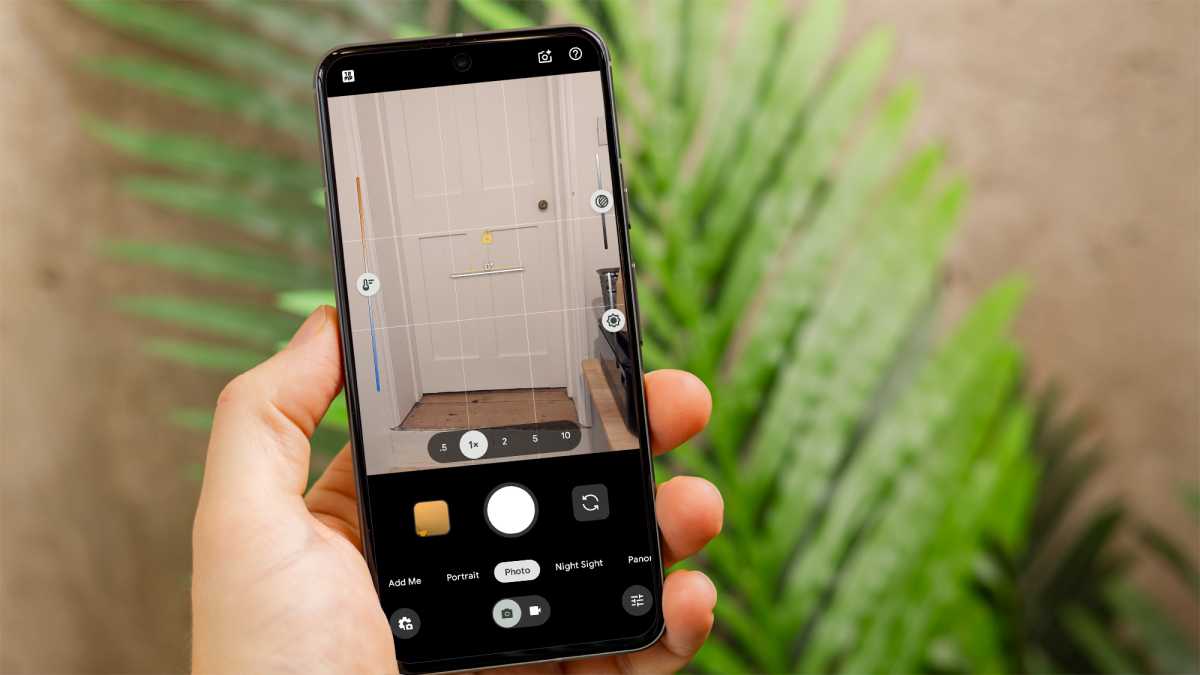
This tip is particularly suitable for portraits, pets, food or detailed shots. Whenever you want to focus on a specific subject, it helps to deliberately fix the focus and brightness. Instead of the camera re-measuring at the last moment, everything remains stable – the photo appears calmer and clearer.
Here’s how:
- Open the camera app
- Tap on your desired subject
- Hold your finger on the display for 1–2 seconds
- A lock or sun symbol will appear
- Now, take the photo
Foundry
What you get:
- The main subject will be reliably in focus, even with a busy background
- The brightness remains constant and does not change shortly before the shutter is released
- The success rate for spontaneous photos increases significantly
2. Digital zoom up to 1.5x – offers more natural proportions
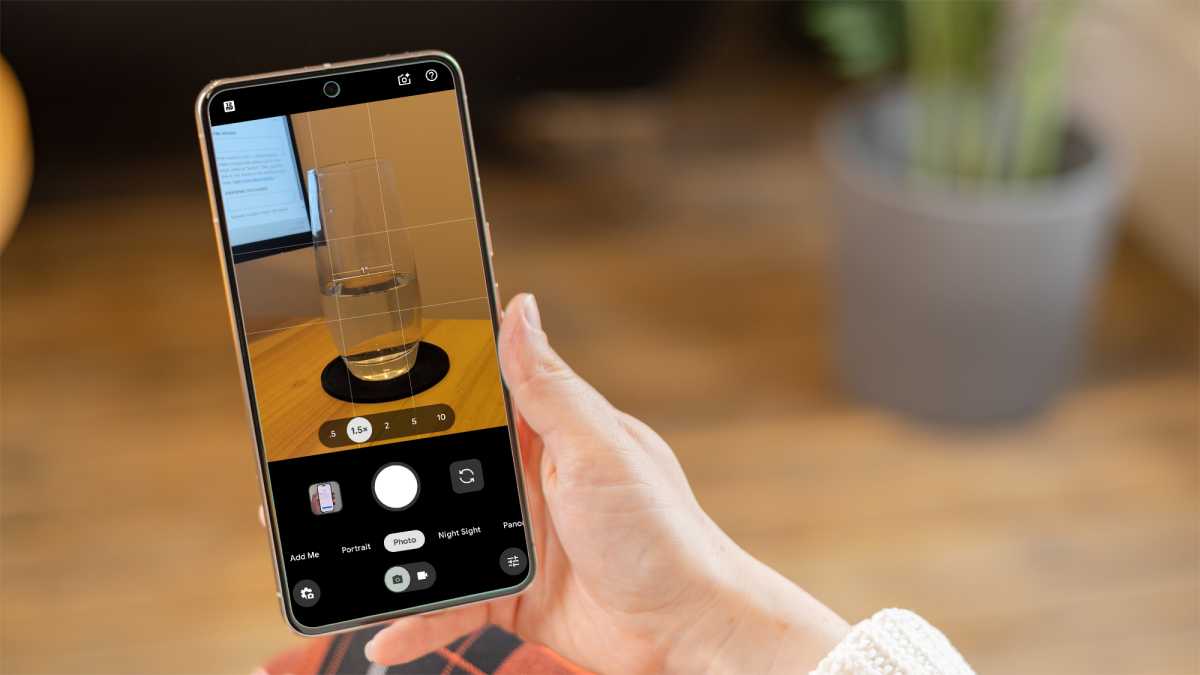
This trick works well for people, objects or street scenes when you don’t want to shoot at arm’s length. A moderate digital zoom can even improve images by reducing extreme wide-angle distortion. Faces appear more natural, lines straighter, and the image edges calmer.
Here’s how:
- Open the camera
- Zoom in to 1.2x to a maximum of 1.5x
- Take photos from a slightly greater distance
Foundry
But be sure to use the zoom function sparingly. At around 2× and above, the image quality typically suffers noticeably unless you have a high-quality telephoto lens. Details are greatly exaggerated, and in poor lighting conditions, digital zoom also increases image noise. In such situations, it is better to avoid using digital zoom altogether.
What you get:
- People and objects appear less distorted than with a pure wide-angle camera
- The image section can be selected more precisely without having to move closer
- Quick shots look more consistent and balanced
3. Use continuous shooting – perfect for movement, sports and children
Whenever something is moving (fast), the next tip is worth its weight in gold. Children, animals, group photos or busy street scenes are often difficult to capture with single shots. Continuous shooting takes the time pressure off you: you can simply select the best photo later.
Here’s how:
- Open the camera
- Hold down the shutter button
- Several photos will be taken automatically
- Then select the best picture
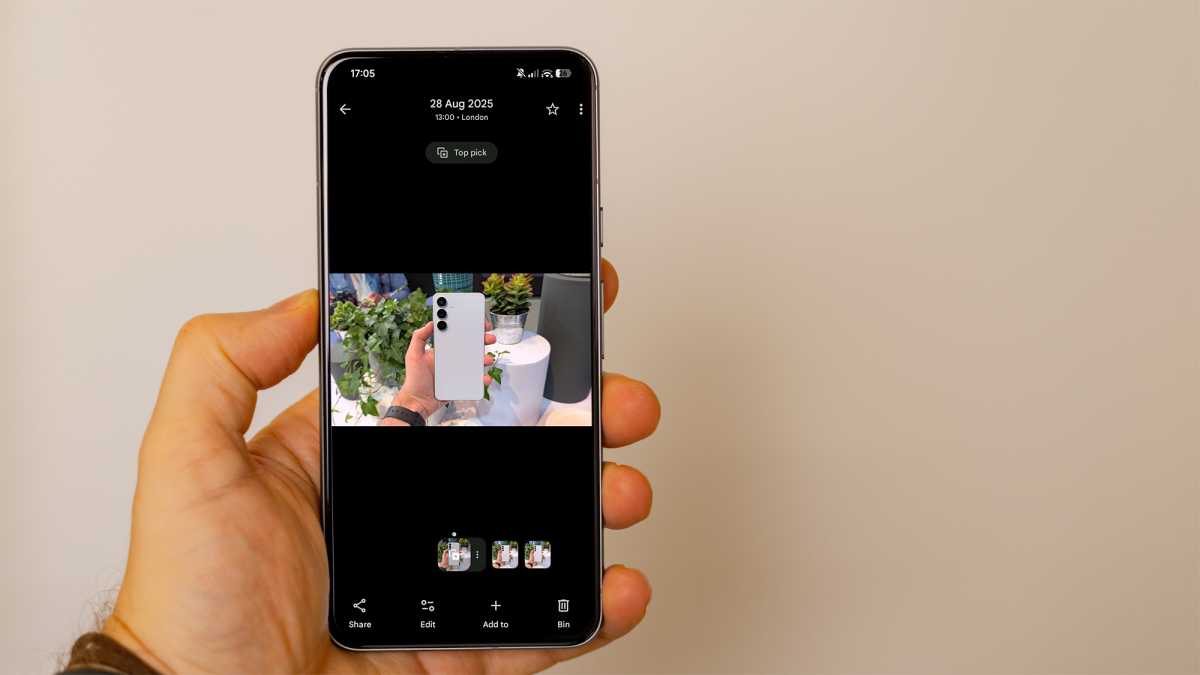
Some Android galleries even help you with this and automatically mark the sharpest or best image in the series. On Pixel devices, “Top Photo” is usually active: in the gallery view, swipe up on the photo to save the perfect moment from a short sequence as a single image.
Foundry
The benefit for you:
- Movement shots are much more reliable
- Blurry or unfavourable shots are hardly noticeable anymore
- Facial expressions appear more natural, and you won’t miss the perfect moment so often
4. Manually control exposure – improves high contrast situations
HDR shows its strengths when light and dark areas are present in the image at the same time. Typical examples are skies with clouds, window fronts or landscapes in sunlight. If you rely on the automatic setting here, you will often end up with blown-out highlights or shadows that are too dark.
Here’s how:
- Open the camera
- In settings, make sure ‘Quick access controls’ is enabled
- Tap the brightest area (such as the sky) in the viewfinder
- A slider (sun icon) will appear
- Drag the slider down slightly until the details in the bright area are visible without the rest of the image appearing too dark
- Take the photo
Foundry
What you get:
- Details are preserved in both the sky and dark areas of the image
- High-contrast scenes appear more balanced and realistic
- Colours appear richer without looking artificial
5. Volume button as the shutter button – for steadier photos
The shutter button on the display is difficult to hit, especially when taking photos with one hand or from unusual angles. The volume button offers a clear pressure point and is easy to reach. Both ensure that the smartphone lies more steadily in your hand when taking photos. In many cases, it is therefore advisable to use the volume button as a shutter button.
Here’s how:
- Hold your smartphone with both hands
- Release the shutter with the volume button
- Exhale briefly, then press
Note: On most Android smartphones, the volume button serves as the camera shutter button by default. If not, the function can be activated in the camera settings.
What you get
- Less camera shake when releasing the shutter.
- More control, especially when taking quick snapshots.
- More stable camera positioning.
Good phone photos are often the result of small adjustments rather than sophisticated technology. If you use your camera cleverly and know a few hidden features, you can get much more out of Android smartphones.
This article originally appeared on our sister publication PC-WELT and was translated and adapted from German.


